
AI-Powered 3D Printing: From Text to STL with Meshy and OpenClaw

How I taught my AI assistant to generate 3D-printable models from simple text descriptions
The Problem
I've been 3D printing for years, but there's always been a gap in my workflow: organic shapes are hard. Sure, I can design a technical items, holders, brackets or enclosure in Shapr 3D, but when I want something sculptural—a figurine, a decorative piece, or a creative toy for my cats—I'm stuck either:
- Downloading pre-made models from Thingiverse (limited selection)
- Spending hours learning Blender (steep learning curve)
AI text-to-3D services like Meshy.ai have changed this. You describe what you want, and AI generates a 3D model. But the workflow was still manual:
- open a browser, log in
- type a prompt, wait
- download
- convert formats, repair the mesh
- slice, print
What if my AI assistant could do all of that for me?
The Solution: A Custom OpenClaw Skill
I use OpenClaw—an AI agent framework that gives Claude access to my local machine, files, and tools. It already helps me with code, email, calendar, and home automation. Why not 3D printing?
I created a custom skill called text-to-stl that lets me say:
"Generate a small cat figurine in a playful pose"
...and get back a print-ready STL file, automatically uploaded to my Google Drive, ready to slice.
Here's how I built it.
Part 1: Setting Up the Meshy API
Getting API Access
- Sign up at meshy.ai
- Navigate to Settings → API Keys
- Generate a new API key (starts with
msy_...) - Store it securely—you'll need it for the skill configuration
Meshy operates on a credit system:
- Preview generation (no texture): 5 credits (Meshy-5 model) or 20 credits (Meshy-6 model)
- Refine (adds texture): additional credits
- Free tier gives you enough credits to experiment
For 3D printing, preview mode is all you need—printers don't use textures anyway.
API Workflow
Meshy's text-to-3D API works in two phases:
- Create a task with your text prompt
- Poll for completion (takes 30-90 seconds)
- Download the model (returns GLB/FBX/OBJ, NOT STL)
- Convert GLB → STL (using Python's trimesh library)
- Repair the mesh (using admesh to fix non-watertight geometry)
Let's build this step by step.
Part 2: Creating the OpenClaw Skill
Skill Structure
OpenClaw skills live in your workspace's skills/ directory. I created:
~/openclaw/skills/text-to-stl-SKILL.md
This markdown file defines:
- When to activate (user asks to generate a 3D model)
- Prerequisites (API key, tools needed)
- Step-by-step instructions for the AI to follow
Configuration
First, I added the Meshy API key to OpenClaw's config at ~/.openclaw/openclaw.json:
{
  "skills": {
    "entries": {
      "text-to-stl": {
        "enabled": true,
        "env": {
          "MESHY_API_KEY": "msy_YOUR_API_KEY_HERE"
        }
      }
    }
  }
}
This makes the API key available as an environment variable when the skill runs.
Prerequisites Check
The skill requires:
curl(for API calls)jq(for JSON parsing)python3withtrimesh(for GLB→STL conversion)admesh(optional, for mesh repair)
Install them:
# Ubuntu/Debian
sudo apt install curl jq admesh
pip3 install trimesh --break-system-packages

# macOS
brew install curl jq admesh
pip3 install trimesh
Part 3: The Workflow (What the AI Does)
When I ask for a 3D model, here's what happens behind the scenes:
Step 1: Create the Preview Task
export MESHY_API_KEY="msy_..."

TASK_ID=$(curl -s -X POST "https://api.meshy.ai/openapi/v2/text-to-3d" \
  -H "Authorization: Bearer ${MESHY_API_KEY}" \
  -H "Content-Type: application/json" \
  -d '{
    "mode": "preview",
    "prompt": "A small cat figurine in a playful crouching pose, tail curved upward, thick solid body with detailed fur texture, sculpture style, wide stable base for 3D printing",
    "negative_prompt": "low quality, low resolution, ugly, broken geometry, floating parts, thin features, fragile details",
    "should_remesh": true,
    "topology": "triangle",
    "target_polycount": 50000
  }' | jq -r '.result')

echo "Task ID: ${TASK_ID}"
Key parameters:
mode: "preview"— generates base geometry without texture (cheaper, faster)prompt— descriptive text with details about shape, style, and "solid geometry for 3D printing"negative_prompt— things to avoid (thin features break during printing)target_polycount: 50000— good balance between detail and file size
Step 2: Poll Until Complete
while true; do
  RESPONSE=$(curl -s "https://api.meshy.ai/openapi/v2/text-to-3d/${TASK_ID}" \
    -H "Authorization: Bearer ${MESHY_API_KEY}")

  STATUS=$(echo "$RESPONSE" | jq -r '.status')
  PROGRESS=$(echo "$RESPONSE" | jq -r '.progress')

  echo "Status: ${STATUS} | Progress: ${PROGRESS}%"

  if [ "$STATUS" = "SUCCEEDED" ]; then
    echo "Preview complete!"
    break
  elif [ "$STATUS" = "FAILED" ]; then
    echo "ERROR: Task failed"
    exit 1
  fi

  sleep 5
done
Generation takes 30-90 seconds depending on complexity.
Step 3: Download GLB and Convert to STL
Meshy returns models in GLB format (GLTF binary), not STL. We need to convert:
# Extract GLB URL from response
GLB_URL=$(echo "$RESPONSE" | jq -r '.model_urls.glb')

# Download GLB
curl -sL "$GLB_URL" -o model.glb

# Convert to STL using Python/trimesh
python3 << 'EOF'
import trimesh

mesh = trimesh.load('model.glb', force='mesh')
mesh.export('model.stl')

# Print stats
stl_mesh = trimesh.load('model.stl')
print(f"Vertices: {len(stl_mesh.vertices):,}")
print(f"Faces: {len(stl_mesh.faces):,}")
print(f"Watertight: {stl_mesh.is_watertight}")
EOF
Output:
Vertices: 24,975
Faces: 49,958
Watertight: False
Problem: AI-generated meshes are almost never watertight. They have tiny gaps, duplicate vertices, and bad normals. Most slicers can auto-repair this, but it's better to fix it properly.
Step 4: Mesh Repair with admesh
admesh -n -d -v -u -f \
  -b model_repaired.stl \
  model.stl
What this does:
-n— find and connect nearby facets-d— check and fix normal directions-v— check and fix normal values-u— remove unconnected facets-f— fill holes-b model_repaired.stl— write binary STL output
Result:
Checking exact...
All facets connected.
Filling holes...
Checking normal directions...
Verifying neighbors...

Number of facets: 49,964
Total disconnected facets: 0
Volume: 0.534 cubic units
Now we have a print-ready STL with:
- All edges connected
- No holes
- Correct normals
- Verified topology
Part 4: The Full Skill File
Here's the text-to-stl-SKILL.md:
---
name: text-to-stl
description: When the user asks to generate a 3D model, create an STL file, make something 3D printable, or convert a text description into a 3D object, use the Meshy API to generate a 3D-printable STL file from a text prompt. Supports preview, refine, remesh, and mesh repair workflows.
metadata: {"openclaw":{"emoji":"🧊","requires":{"env":["MESHY_API_KEY"],"bins":["curl","jq","python3"]},"install":[{"id":"jq-brew","kind":"brew","formula":"jq","bins":["jq"],"label":"Install jq (brew)"},{"id":"jq-apt","kind":"shell","command":"sudo apt-get install -y jq","bins":["jq"],"label":"Install jq (apt)"},{"id":"trimesh-pip","kind":"shell","command":"pip3 install trimesh --break-system-packages","label":"Install trimesh (pip3)"}]}}
---

# Text to STL — 3D Printable Model Generation

Generate 3D-printable STL files from text descriptions using the Meshy API (v2).

## When to Use

Activate this skill when the user wants to:

- Generate a 3D model from a text description
- Create an STL file for 3D printing
- Make a 3D-printable object from a prompt
- Convert an idea or description into a printable mesh

## Prerequisites

- `MESHY_API_KEY` environment variable must be set (obtain from https://www.meshy.ai/api)
- `curl` and `jq` must be available on the system
- `python3` with `trimesh` library installed (for GLB→STL conversion)
- Optionally, `admesh` for post-processing mesh repair (`apt install admesh` or `brew install admesh`)

## Workflow

The Meshy text-to-3D pipeline has two phases:

1. **Preview** — generates base geometry (no texture). Costs 5 credits (Meshy-5) or 20 credits (Meshy-6).
2. **Refine** — adds texture to the preview mesh. Optional for 3D printing since printers typically don't use textures.

For 3D printing, the preview phase alone is usually sufficient. Only run refine if the user specifically wants a textured model or color 3D printing.

**⚠️ Important:** Meshy returns models in GLB/FBX/OBJ formats, NOT STL directly. After generation, download the GLB file and convert it to STL using trimesh (Python library).

## Step-by-Step Instructions

### Step 1: Create a Preview Task

```bash
TASK_ID=$(curl -s -X POST "https://api.meshy.ai/openapi/v2/text-to-3d" \
  -H "Authorization: Bearer ${MESHY_API_KEY}" \
  -H "Content-Type: application/json" \
  -d '{
    "mode": "preview",
    "prompt": "<USER_PROMPT>",
    "negative_prompt": "low quality, low resolution, low poly, ugly, broken geometry, floating parts",
    "should_remesh": true,
    "topology": "triangle",
    "target_polycount": 50000
  }' | jq -r '.result')

echo "Preview task created: ${TASK_ID}"
```

**Prompt guidelines for the user's description:**
- Focus on a single object, not a full scene
- Include 3-6 key descriptive details about shape, proportion, and surface
- Mention style if relevant: "realistic", "low-poly", "cartoon", "sculpture"
- For printing, add "solid", "thick walls", "no thin features" to reduce fragile geometry

**Parameters to adjust based on user needs:**
- `target_polycount`: 10000-100000. Higher = more detail but larger file. Default 50000 is a good balance.
- `topology`: Always use `"triangle"` for STL/3D printing.
- `should_remesh`: Always `true` for print-ready output.

### Step 2: Poll Until Complete

```bash
while true; do
  RESPONSE=$(curl -s "https://api.meshy.ai/openapi/v2/text-to-3d/${TASK_ID}" \
    -H "Authorization: Bearer ${MESHY_API_KEY}")
  STATUS=$(echo "$RESPONSE" | jq -r '.status')
  PROGRESS=$(echo "$RESPONSE" | jq -r '.progress')

  echo "Status: ${STATUS} | Progress: ${PROGRESS}%"

  if [ "$STATUS" = "SUCCEEDED" ]; then
    echo "Preview complete."
    break
  elif [ "$STATUS" = "FAILED" ]; then
    ERROR=$(echo "$RESPONSE" | jq -r '.task_error.message // "Unknown error"')
    echo "ERROR: Task failed — ${ERROR}"
    exit 1
  fi

  sleep 5
done
```

Preview generation typically takes 30-90 seconds.

**Alternative: Use SSE streaming instead of polling:**
```bash
curl -N "https://api.meshy.ai/openapi/v2/text-to-3d/${TASK_ID}/stream" \
  -H "Authorization: Bearer ${MESHY_API_KEY}"
```

### Step 3: Download GLB and Convert to STL

Meshy returns models in GLB format. Download the GLB file and convert it to STL using trimesh:

```bash
# Extract GLB URL from the response
GLB_URL=$(echo "$RESPONSE" | jq -r '.model_urls.glb')

if [ -z "$GLB_URL" ] || [ "$GLB_URL" = "null" ]; then
  echo "ERROR: No GLB URL in response"
  exit 1
fi

# Download GLB
curl -sL "$GLB_URL" -o model.glb
echo "Downloaded: model.glb ($(wc -c < model.glb) bytes)"

# Convert GLB to STL using trimesh
python3 << 'EOF'
import trimesh
import sys

try:
    # Load GLB and export to STL
    mesh = trimesh.load('model.glb', force='mesh')
    mesh.export('model.stl')

    # Get stats
    stl_mesh = trimesh.load('model.stl')
    print(f"✓ Converted to STL successfully!")
    print(f"  Vertices: {len(stl_mesh.vertices):,}")
    print(f"  Faces: {len(stl_mesh.faces):,}")
    print(f"  Watertight: {stl_mesh.is_watertight}")

    if not stl_mesh.is_watertight:
        print("  ⚠️  Mesh is not watertight - enable auto-repair in your slicer")
except Exception as e:
    print(f"ERROR: Conversion failed - {e}")
    sys.exit(1)
EOF

echo "STL file ready: model.stl ($(wc -c < model.stl) bytes)"
```

**Note:** If `trimesh` is not installed, install it with:
```bash
pip3 install trimesh --break-system-packages
# or in a venv:
python3 -m venv venv && source venv/bin/activate && pip install trimesh
```

### Step 4 (Optional): Mesh Repair for Print Readiness

AI-generated meshes are frequently not watertight or manifold. If `admesh` is available, run a repair pass:

```bash
if command -v admesh &>/dev/null; then
  admesh --fix-all --normal-directions --normal-values \
    --remove-unconnected --fill-holes \
    --write-binary-stl=model_fixed.stl model.stl
  echo "Repaired mesh saved to model_fixed.stl"
  echo "Mesh stats:"
  admesh model_fixed.stl 2>&1 | head -20
else
  echo "NOTICE: admesh not installed. Skipping mesh repair."
  echo "For best print results, install admesh and re-run, or import into your slicer and check for errors."
fi
```

### Step 5 (Optional): Refine for Textured Output

Only if the user wants textures (e.g., for color 3D printing):

```bash
REFINE_ID=$(curl -s -X POST "https://api.meshy.ai/openapi/v2/text-to-3d" \
  -H "Authorization: Bearer ${MESHY_API_KEY}" \
  -H "Content-Type: application/json" \
  -d "{
    \"mode\": \"refine\",
    \"preview_task_id\": \"${TASK_ID}\"
  }" | jq -r '.result')

echo "Refine task created: ${REFINE_ID}"
# Poll same as Step 2, using REFINE_ID
```

After refine, `model_urls` will include textured GLB/FBX/OBJ formats (convert to STL using the same trimesh workflow as Step 3).

## Output

Present the user with:

1. The file path to `model.stl` (or `model_fixed.stl` if repaired)
2. File size in MB
3. Mesh stats (vertices, faces, watertight status)
4. A reminder that they should preview in their slicer (Cura, PrusaSlicer, OrcaSlicer, BambuStudio) before printing
5. If mesh is not watertight (common for AI-generated models), suggest they enable auto-repair in their slicer or run Step 4 mesh repair

## Error Handling

| Error | Cause | Resolution |
|-------|-------|------------|
| 401 Unauthorized | Invalid or missing API key | Verify `MESHY_API_KEY` is set and valid |
| 402 Payment Required | Insufficient credits | User needs to top up credits at meshy.ai |
| 429 Too Many Requests | Rate limit exceeded | Wait and retry. Meshy rate limits vary by plan tier |
| Task status FAILED | Prompt too vague or unsupported | Retry with a more descriptive prompt; avoid full scenes |
| Empty GLB URL | Model format not available | Check API response; Meshy should always provide GLB |

## Example Prompts

**User says:** "Make me a 3D printable phone stand"
**Meshy prompt:** "A minimalist phone stand with a wide stable base and angled slot to hold a smartphone upright, solid thick walls, smooth surface"

**User says:** "Create an STL of a dragon figurine"
**Meshy prompt:** "A detailed dragon figurine sitting on a rock base, wings folded, thick body with textured scales, sculpture style, solid geometry suitable for 3D printing"

**User says:** "Generate a 3D gear I can print"
**Meshy prompt:** "A single mechanical spur gear with 24 teeth, thick hub with center hole, industrial style, solid geometry"

> **Note:** For precise mechanical parts like gears with exact dimensions, text-to-3D generation may not produce dimensionally accurate results. Suggest the user consider OpenSCAD or FreeCAD for parametric parts that require tight tolerances.

## Configuration

The skill reads `MESHY_API_KEY` from the environment. Set it in `~/.openclaw/openclaw.json`:

```json
{
  "skills": {
    "entries": {
      "text-to-stl": {
        "enabled": true,
        "env": {
          "MESHY_API_KEY": "your-api-key-here"
        }
      }
    }
  }
}
```

Or export it in your shell: `export MESHY_API_KEY="your-api-key-here"`
Part 5: Real-World Results
I tested this with a simple prompt:
"A small cat figurine in a playful crouching pose"
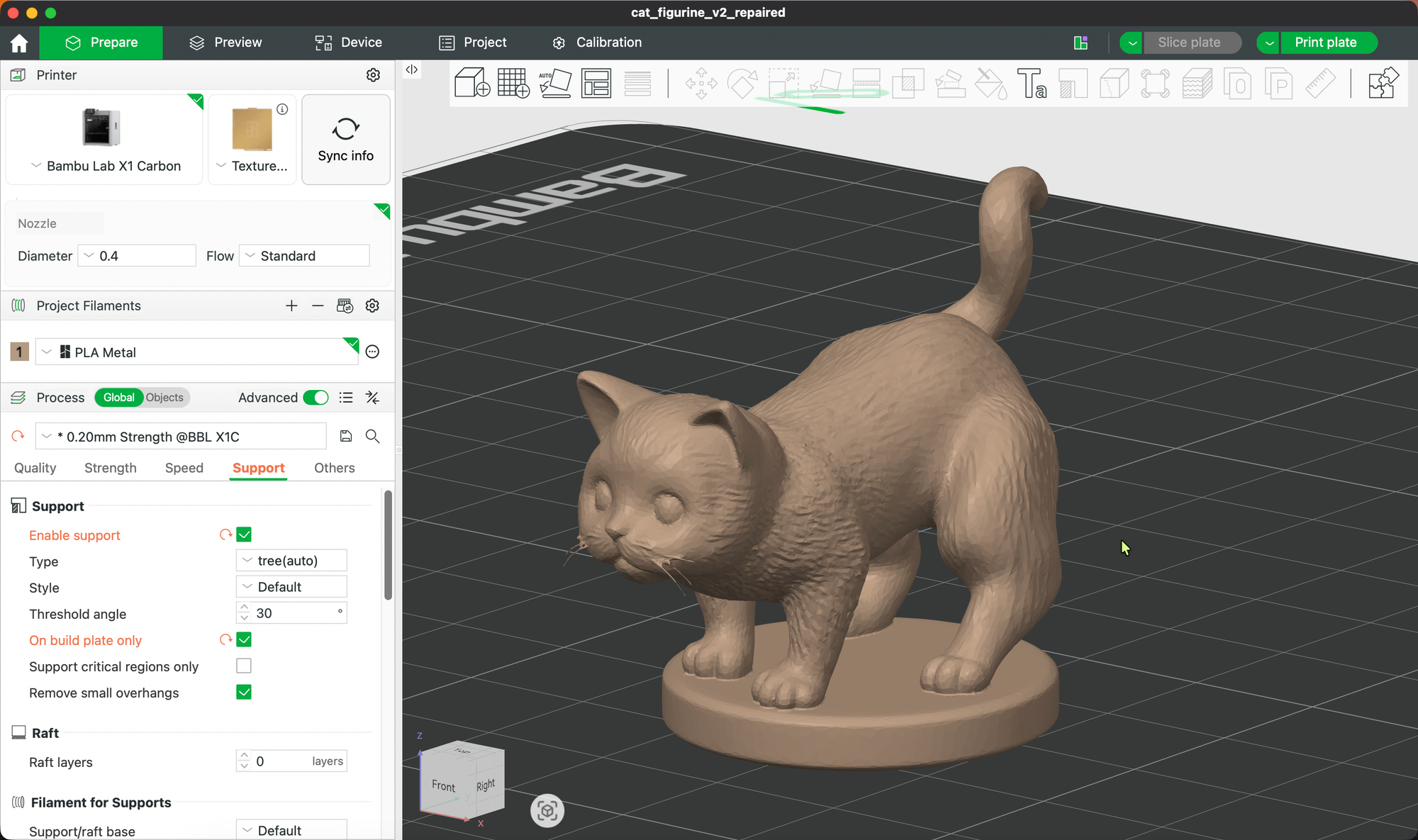
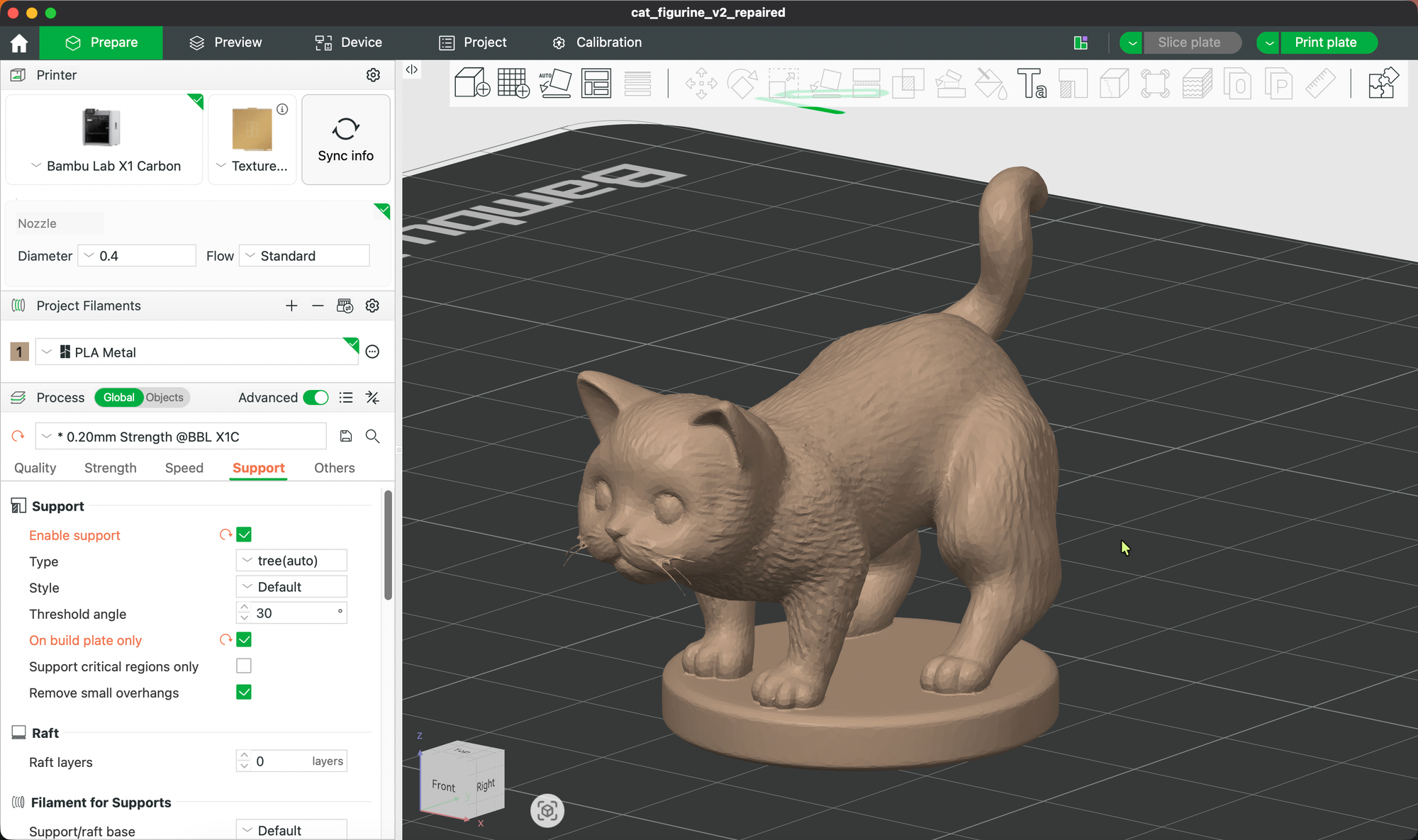
What I got:
- Generation time: ~90 seconds
- Raw STL: 24,975 vertices, 49,958 faces, 2.4 MB
- Repaired STL: 49,964 faces, all connected, watertight
- Dimensions: ~53mm × 68mm × 95mm
The model:
The print:
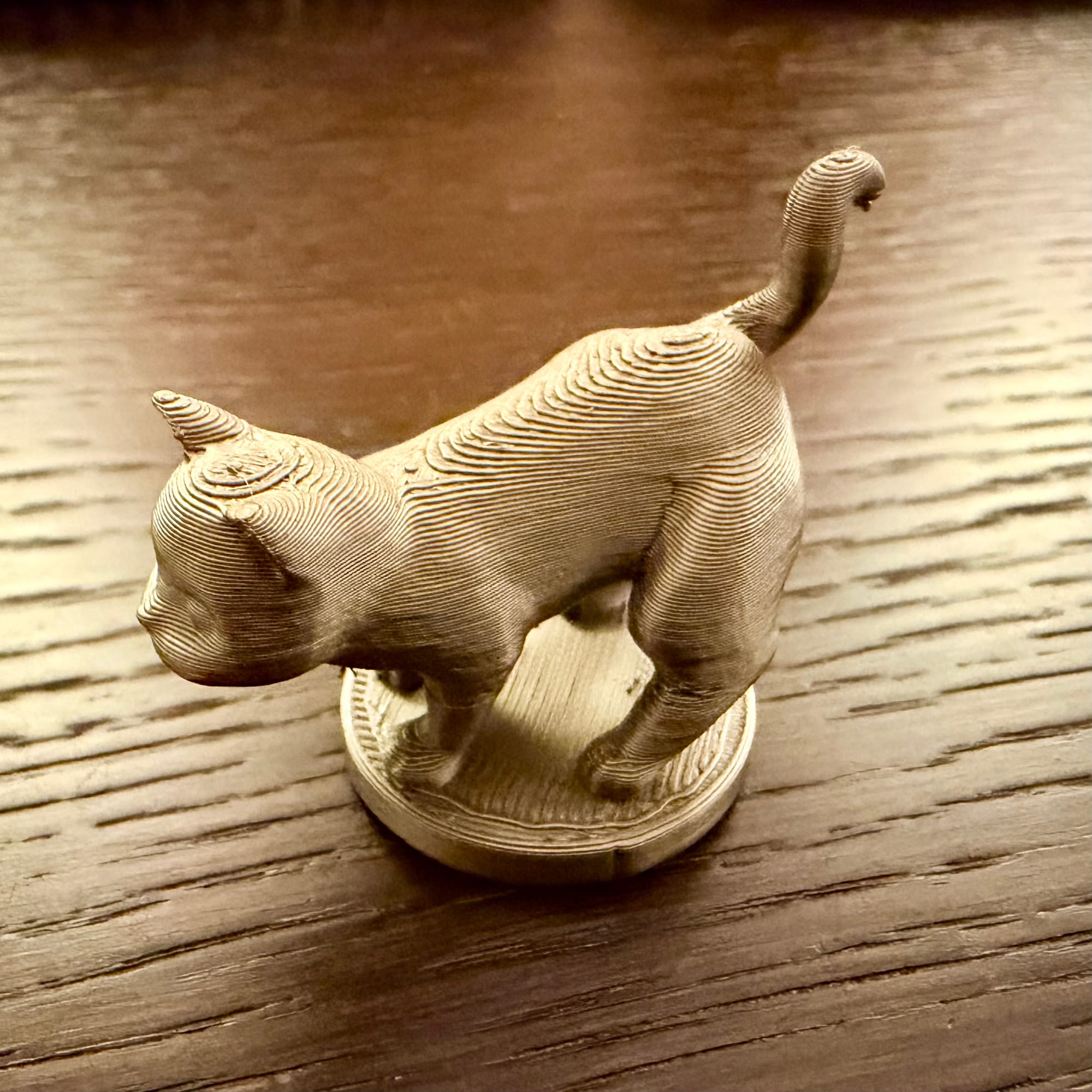
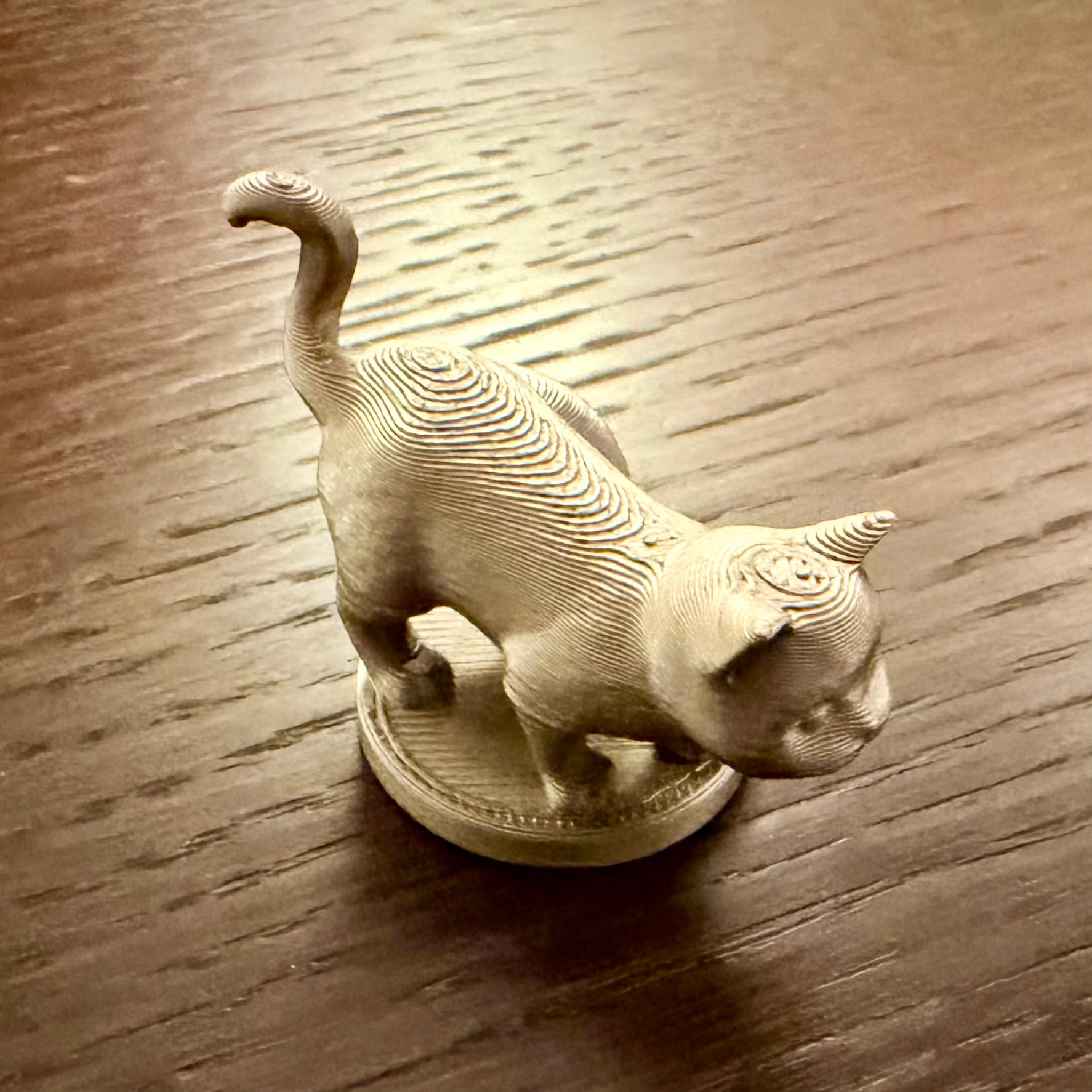
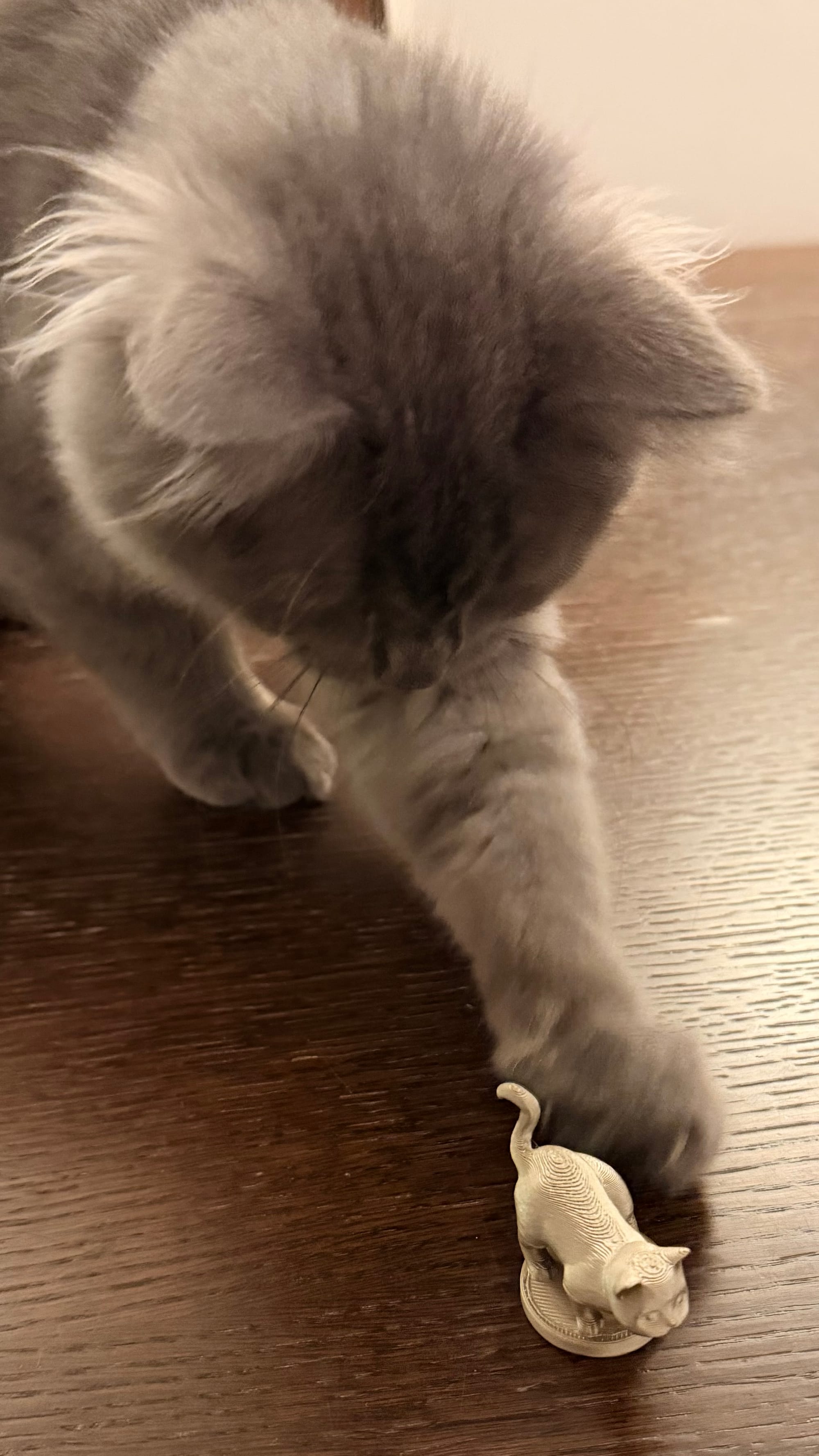
It worked perfectly. The model sliced cleanly in BambuStudio, printed in a few minutes on my Bambu Lab X1 Crbon, and came out better than I expected for an AI-generated model.
Key Learnings
✅ What Works Well
- Meshy is fast — 30-90 seconds from prompt to model
- Descriptive prompts matter — "thick solid body, wide stable base for 3D printing" gets much better results than just "cat figurine"
- Negative prompts help — explicitly avoiding "thin features" and "fragile details" reduces print failures
- admesh is essential — AI models are almost never watertight; admesh fixes 90% of issues automatically
- Preview mode is enough — no need to pay extra for texture refinement when you're just printing in PLA
⚠️ Limitations
- Not for precision parts — AI models are sculptural, not dimensionally accurate. For brackets, mounts, or gears, stick with a CAD solution..
- Mesh repair isn't magic — some models still need manual cleanup in Meshy or your slicer
- Credit costs add up — 5-20 credits per model means you'll want a paid plan if you do this regularly
- Prompt engineering required — getting exactly what you want takes iteration
💡 Tips for Better Results
Good prompts:
- "A cat figurine sitting upright, thick body, stable flat base, sculpture style, solid geometry for 3D printing"
- "A decorative key holder shaped like a tree branch, thick walls, mounting holes at the back"
Bad prompts:
- "A cat" (too vague)
- "A highly detailed ultra-realistic cat with individual whiskers" (too fragile to print)
- "A cat on a table next to a lamp" (AI will try to generate a full scene, not a single object)
Golden rule: Describe a single object with 3-6 key details about shape, proportion, and style. Always mention "solid geometry" or "thick walls" for printability.
Automation Wins
The real power isn't just generating models—it's the full end-to-end workflow:
- I say: "Generate a cat figurine"
- AI creates the task, polls for completion, downloads GLB
- Converts to STL, runs admesh repair
- Uploads to my Google Drive
- Sends me the link with mesh stats
Total time: 2 minutes, fully automated.
Compare that to:
- Opening a browser
- Logging into Meshy
- Typing a prompt
- Waiting and refreshing
- Downloading manually
- Converting in Blender
- Running repair in Meshy
- Exporting STL
- Moving to slicer
The skill saves me 10-15 minutes per model and removes all the context-switching friction.
What's Next
I'm already thinking about improvements:
- Batch generation — generate multiple variations with different prompts, pick the best one
- Automatic slicing — integrate with PrusaSlicer CLI to generate G-code directly
- Photo-to-3D — Meshy also supports image-to-3D; could extend the skill for that
- Size normalization — automatically scale models to a target size (e.g., "make it 100mm tall")
- Print queue integration — send G-code directly to my Bambu Lab printer via API
Try It Yourself
To use it:
- Install OpenClaw:
npm install -g openclaw - Sign up for Meshy.ai and get an API key
- Add the skill file to
~/openclaw/skills/text-to-stl-SKILL.md - Configure the API key in
~/.openclaw/openclaw.json - Install prerequisites:
apt install curl jq admesh && pip3 install trimesh - Ask your AI assistant: "Generate a 3D printable [description]"
Conclusion
AI is transforming how we create. Not just code, not just text, but physical objects.
With the right tools and a bit of automation, you can go from an idea in your head to a physical print in under 10 minutes. And that's just the beginning.
Have you tried AI-generated 3D models? What worked (or didn't) for you? Let me know.