
Anthropic Cowork: AI Desktop Automation for Knowledge Workers

Anthropic's Claude Code has been transforming how developers work, but many users discovered something unexpected: it's incredibly useful for non-coding tasks too. People started using it for vacation research, building slide decks, organizing files, and managing emails. Anthropic took notice and built Cowork — a desktop AI agent that brings Claude Code's agentic capabilities to everyone.
What is Cowork?
Cowork is an AI desktop agent built into the Claude macOS app that can directly access and manipulate files on your computer. Unlike traditional AI chatbots that live inside chat windows and only provide suggestions, Cowork breaks free by taking actual action on your behalf.
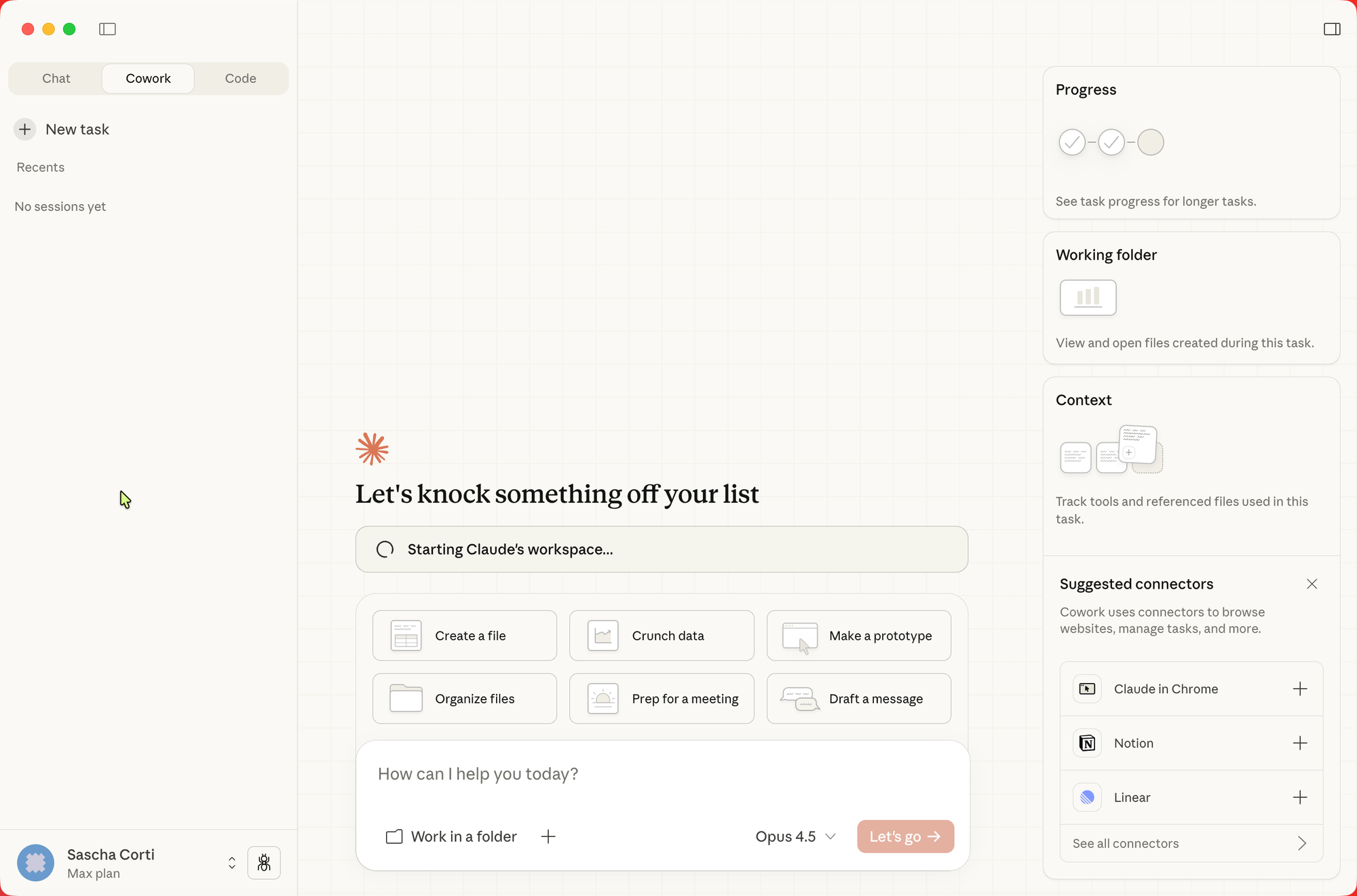
The key difference from a regular Claude conversation:
- You grant Claude access to a specific folder on your computer
- Claude can read, edit, and create files in that folder
- Claude works autonomously — it makes a plan and executes it step by step
- You can queue tasks while Claude works in parallel
Think of it as having a digital coworker who can organize files, extract data from documents, create presentations, and even browse the web on your behalf.
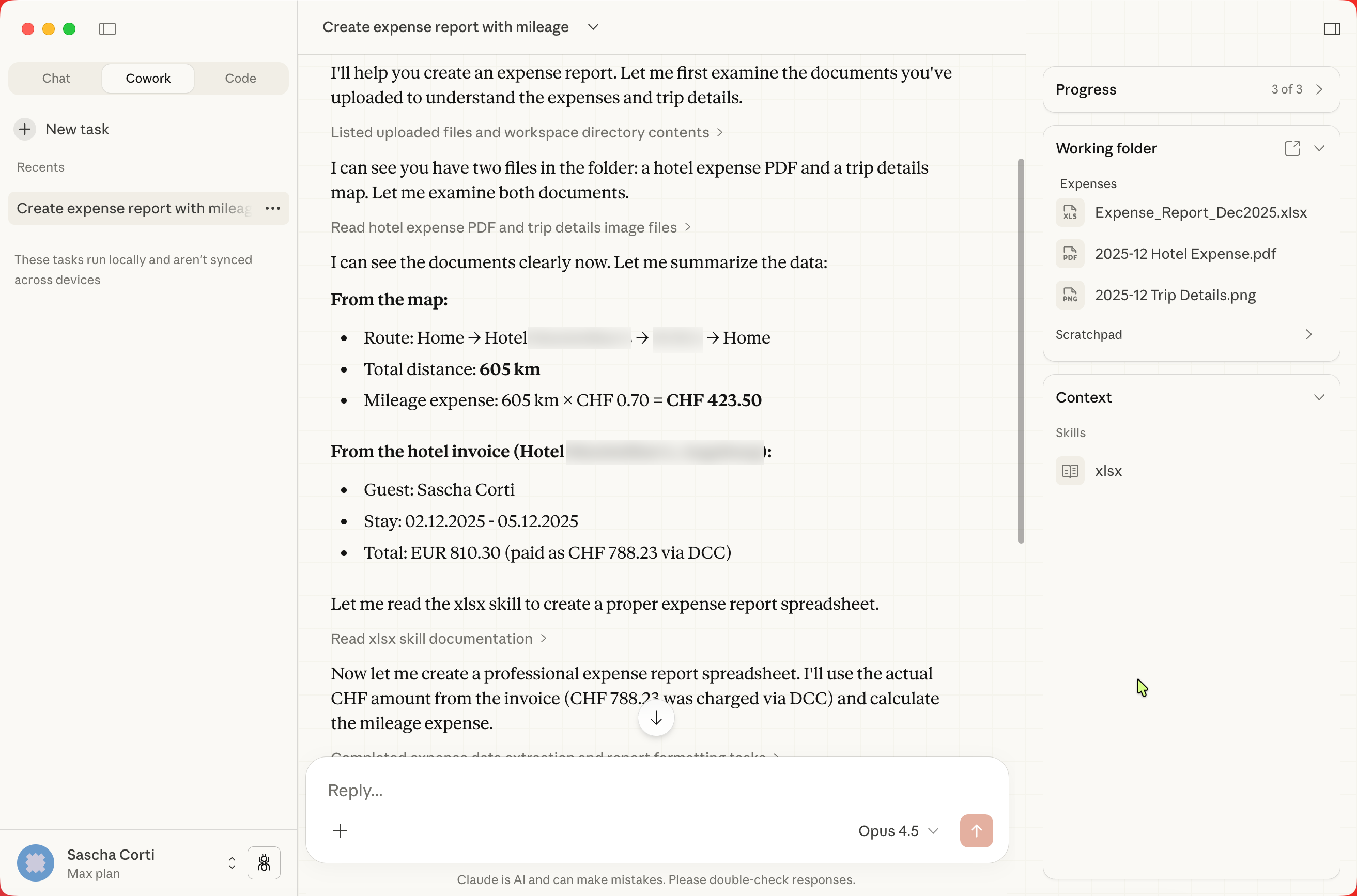
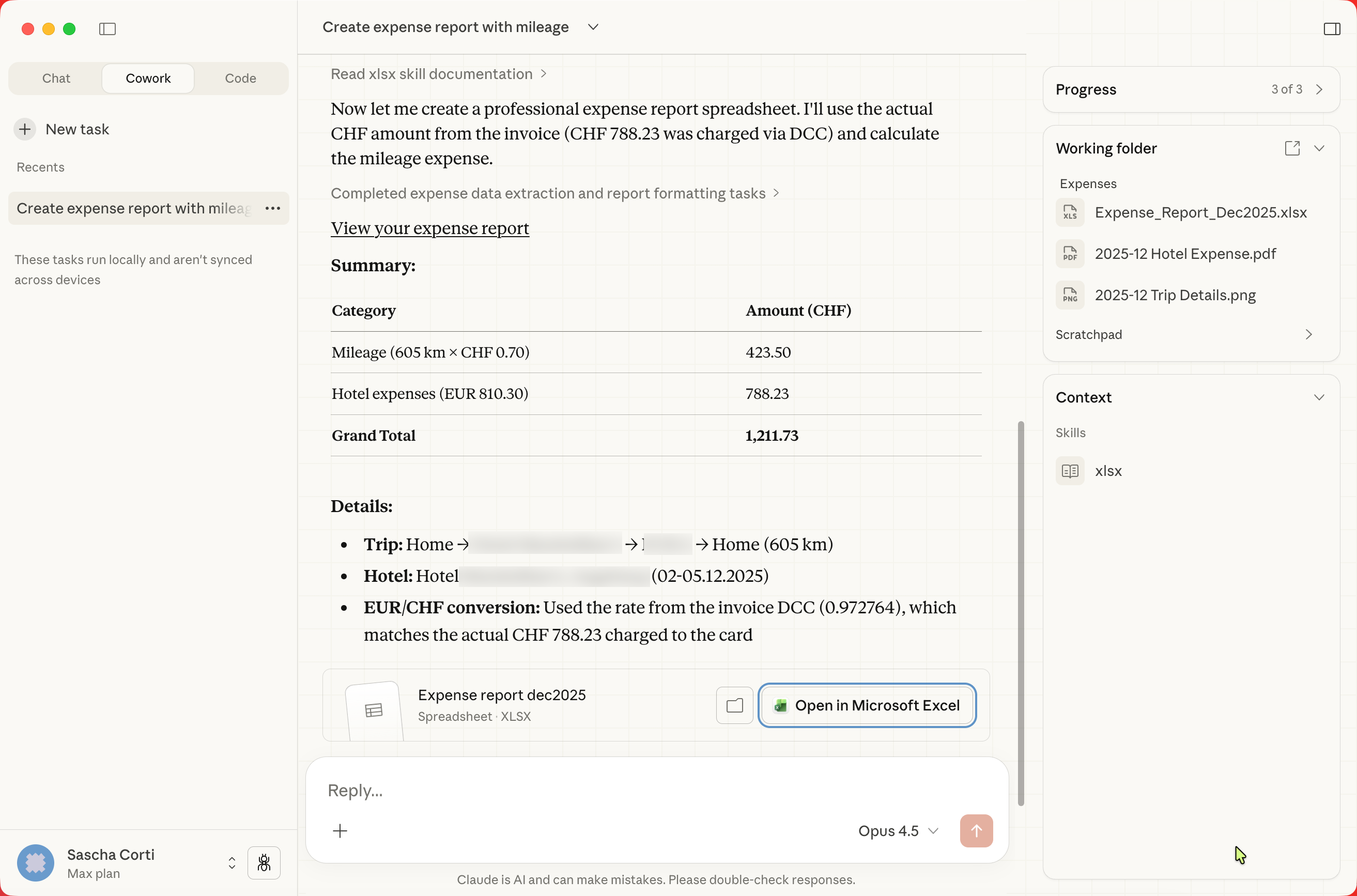
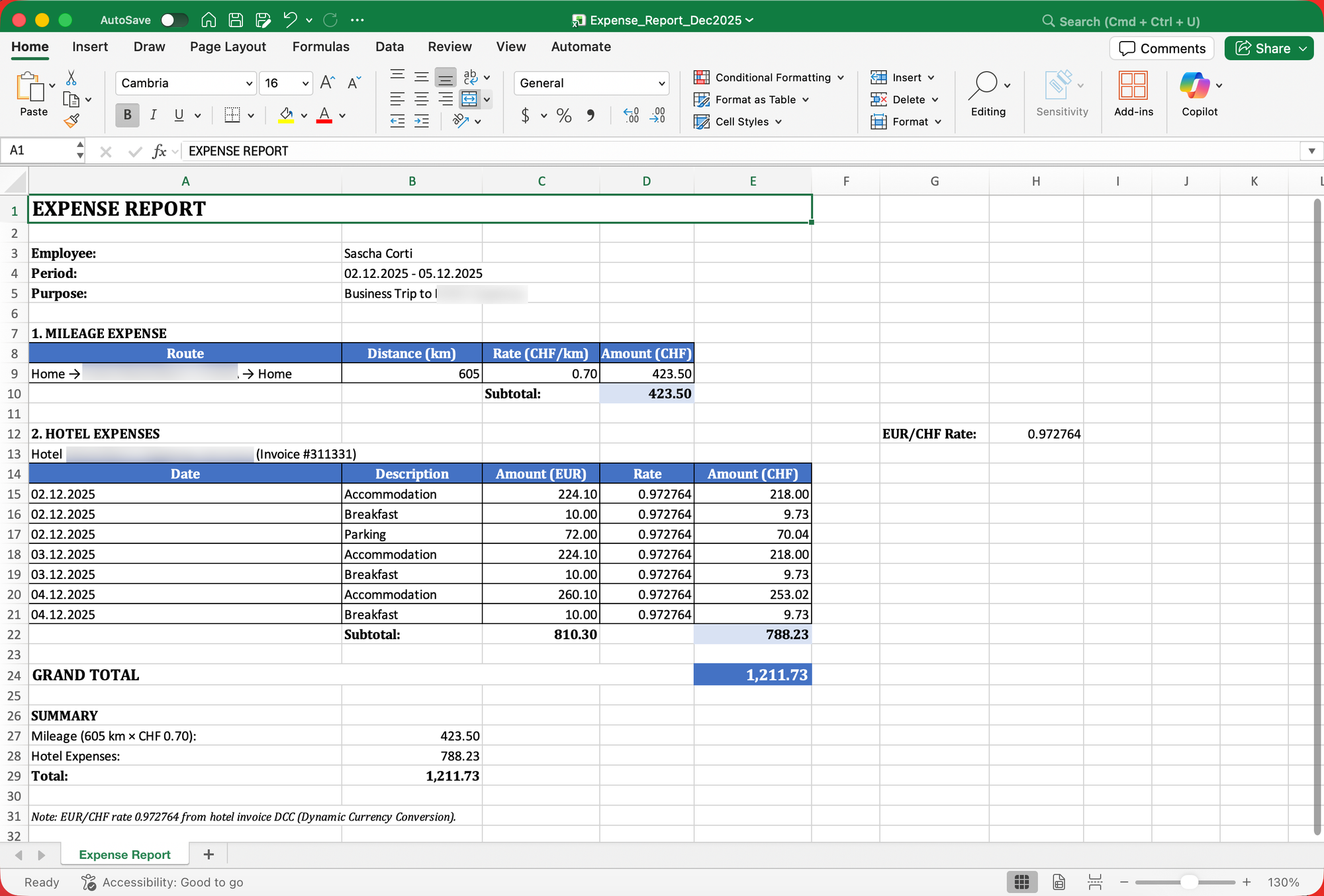
Expense Report Example
Allow access to the scanned invoices and a map with the trip (Google Maps) to calculate kilometer allowance. Prompt to create report.
How Cowork Works
1. Folder-Based Access Control
Security is built into the core design. When you start a Cowork session, you explicitly grant Claude access to specific folders. Claude cannot see or modify anything outside these designated directories.
Example folder structure:
~/Documents/Expenses/     ← Claude has access
~/Documents/Personal/     ← Claude cannot see this
2. Autonomous Task Execution
Unlike standard chat where you receive one response at a time, Cowork functions as an autonomous agent:
- You describe what you need in plain language
- Claude creates a detailed plan
- Claude executes each step, showing progress
- You can interrupt, redirect, or add new requirements mid-task
3. Sub-Agent Coordination
For complex tasks with independent components, Cowork can spawn multiple Claude instances working simultaneously. Need competitive analysis on five companies? Claude spins up five agents, each researching one company, then aggregates the results.
4. Browser Integration
When paired with Claude in Chrome, Cowork can complete tasks requiring web access — navigating websites, filling forms, extracting information — all while operating from the desktop application.
Practical Example: Email Management in Outlook
One of the most powerful use cases for Cowork is email management. While Cowork doesn't directly integrate with Outlook's internal API, it can work with exported emails and integrate through several approaches:
Approach 1: Export-Based Workflow
Export emails from Outlook to a folder and let Cowork process them:
Step 1: Export emails from Outlook
- Select emails → File → Save As → Save to a designated folder
- Or use Outlook's export feature to create CSV/PST files
Step 2: Point Cowork at the folder
Prompt example:
"I have exported emails in this folder. Please:
1. Categorize them by sender domain (work, personal, newsletters)
2. Identify any emails requiring urgent response (look for words like 'urgent', 'ASAP', 'deadline')
3. Create a summary document listing action items
4. Draft response templates for the top 5 most common inquiry types"
Step 3: Import responses back
Cowork can generate draft responses as text files that you copy back into Outlook.
Approach 2: Using MCP Connectors
The Model Context Protocol (MCP) enables deeper integrations. There are community-built MCP servers for Outlook Calendar, and similar connectors for email are emerging:
With an Outlook MCP connector:
- Claude can read your inbox directly
- Draft emails appear in your Outlook drafts folder
- Calendar events sync automatically
Approach 3: Automation Platform Integration
Tools like Zapier, Make, or Power Automate can bridge Cowork and Outlook:
Example Workflow:
- Trigger: New email arrives in Outlook
- Action: Save email content to a watched folder
- Cowork: Processes the email, generates a response draft
- Action: Draft is pushed back to Outlook via automation
Email Management Prompts
Here are practical prompts for email-related tasks:
Daily Email Triage:
Review the emails in this folder from today. Create a prioritized
action list with:
- Category (client, internal, external, newsletter)
- Priority (high/medium/low)
- Required action (respond/review/archive/delegate)
- Suggested response summary for high-priority items
Newsletter Summary:
I've saved my weekly newsletters to this folder. Create a digest
document that:
- Groups by topic (tech, business, personal development)
- Extracts the 3 most interesting points from each
- Highlights any time-sensitive opportunities or events
Meeting Request Handler:
Analyze the meeting requests in this folder. For each one:
- Determine if it requires my attendance or can be delegated
- Check for scheduling conflicts (I've exported my calendar as calendar.ics)
- Draft acceptance/decline responses with appropriate context
More Use Cases
File Organization
Prompt:
"Organize my Downloads folder into subfolders by type (documents,
images, spreadsheets, other). Then rename each file with today's
date in YYYY-MM-DD format at the beginning of the filename."
Expense Report Generation
Prompt:
"I have receipt screenshots in this folder. Create an Excel
spreadsheet with columns for Date, Vendor, Category (meals,
travel, supplies, other), Amount, and Description. Extract
information from each receipt image. If the date or amount
isn't clear, mark it as 'VERIFY'. Add a totals row at the bottom."
Research Synthesis
Prompt:
"I have PDFs and notes about [topic] in this folder. Create a
comprehensive research report that:
1. Identifies key themes across all sources
2. Highlights conflicting viewpoints
3. Summarizes the current state of research
4. Lists open questions for further investigation"
Presentation Creation
Prompt:
"Using the content in my 'Project Notes' folder and the brand
assets in 'Brand Kit', create a 10-slide presentation for the
quarterly business review. Include:
- Executive summary
- Key metrics and trends
- Challenges and solutions
- Next quarter roadmap"
Safety Considerations
Built-in Protections
- Sandboxed Execution: Code runs in an isolated virtual machine using Apple's Virtualization Framework
- Permission Prompts: Claude asks before taking significant actions
- Deletion Protection: Explicit permission required before deleting files
Prompt Injection Risks
Like any AI agent with real-world access, Cowork faces risks from prompt injection — malicious instructions hidden in webpages or files that could influence behavior. Anthropic has built sophisticated defenses, but recommends:
- Limiting browser access to trusted sites
- Being cautious with folders containing files from unknown sources
- Reviewing Claude's plan before execution
- Starting with read-only tasks before modifications
Best Practices
- Create dedicated project folders rather than granting broad system access
- Back up important files before granting Cowork access
- Start simple with test folders before touching important data
- Review the plan Claude generates before allowing execution
Current Limitations
As a research preview (January 2026), Cowork has some constraints:
| Limitation | Details |
|---|---|
| Platform | macOS only (Windows planned) |
| Memory | No context retention between sessions |
| Projects | Cannot use within Claude Projects |
| Session | Desktop app must remain open |
| Connectors | External integrations less reliable than chat |
Availability and Pricing
| Plan | Monthly Cost | Cowork Access |
|---|---|---|
| Free | $0 | Waitlist |
| Pro | $20 | Research Preview |
| Max | $100-200 | Full Research Preview |
| Team | Enterprise | Research Preview |
Getting Started
- Download the Claude macOS app from claude.com/download
- Subscribe to Pro or Max plan
- Click "Cowork" in the sidebar
- Grant folder access when prompted
- Start simple with a test folder
Recommended first prompt:
I have some test files in this folder. Can you organize them
into subfolders based on their file types and give me a summary
of what you found?
The Future of Desktop AI
Cowork represents a fundamental shift from AI that suggests to AI that acts. The role of humans increasingly shifts toward strategy, creativity, and decision-making while AI handles execution.
Anthropic plans to add:
- Windows support
- Cross-device sync
- Enhanced connectors (Google Calendar, Gmail, Drive)
- Improved reliability for complex workflows
Whether it's managing your inbox, organizing years of scattered files, or turning research notes into polished presentations — Cowork turns your desktop computer into an AI-powered productivity machine.
Cowork is available now in research preview for Claude Max subscribers on macOS. Pro subscribers and Team/Enterprise plans also have access. Visit claude.com/download to get started.
References: