Building CatPaws: A macOS App That Protects Your Work from Curious Cats

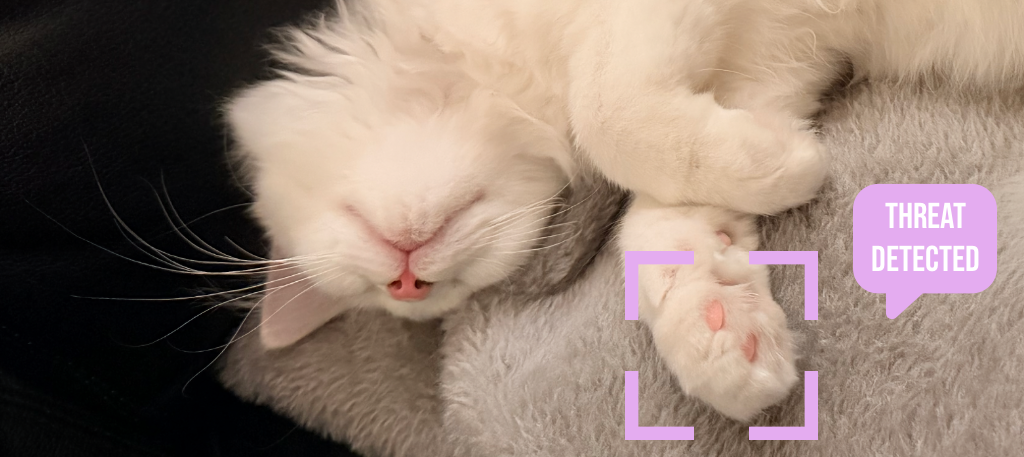
Every cat owner who works from home knows the struggle: you're deep in concentration, crafting the perfect email or debugging complex code, when suddenly your feline friend decides that your keyboard is the most desirable spot in the entire house. The result? Random characters flooding your document, accidentally sent emails, or worse—deleted code.
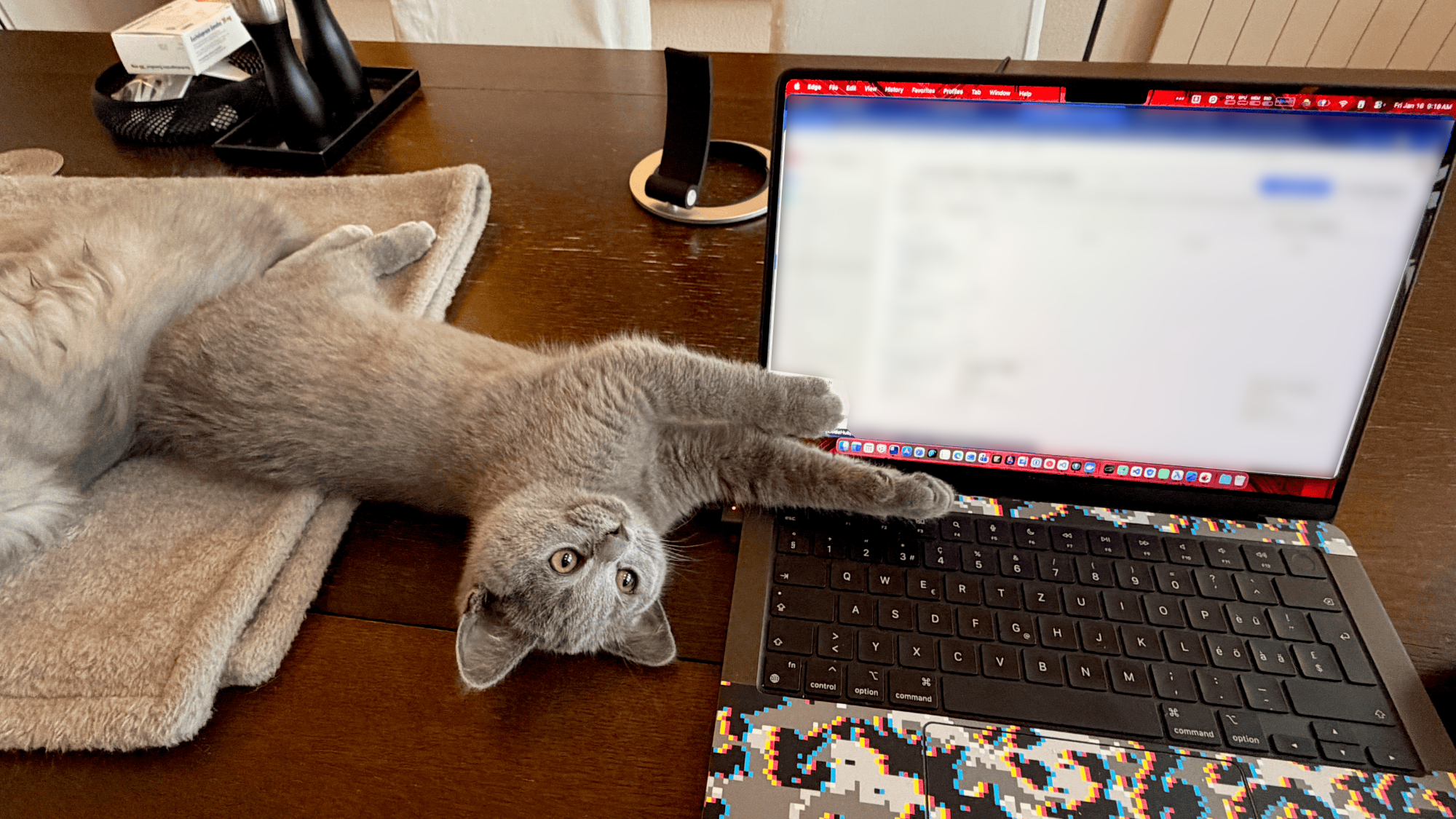
I was pretty amazed to find out that there is no app for that on macOS. That's when I decided to build CatPaws, a free, open-source macOS menu bar app that solves this problem by detecting when a cat walks on your keyboard and automatically locking input to prevent unwanted keystrokes.
Why CatPaws?
Working from home with cats presents a unique challenge. Cats are drawn to keyboards for several reasons: the warmth of the laptop, the attention they get when they walk across it, or simply because it's where you're focused and they want to mirror your behavior. Traditional solutions like closing the laptop lid or pushing the cat away interrupt your workflow.
CatPaws takes a different approach: let the cat do what cats do, while protecting your work automatically.
Key Features
- Smart Cat Detection – Recognizes cat-like keyboard patterns and distinguishes them from normal typing
- Instant Protection – Blocks all keyboard input within milliseconds of detecting your cat
- Privacy First – No data collection, no network access, everything stays on your Mac
- Statistics – Track how often your cat visits your keyboard (spoiler: probably more than you think)
How Does Cat Detection Work?
The core challenge of CatPaws is distinguishing between a cat walking on a keyboard and a human typing. It turns out there's a reliable pattern difference.
Human Typing vs. Cat Paws
When humans type, keys are pressed sequentially—one after another, rarely more than two at a time (think: Shift+letter). Even fast typists don't press multiple non-modifier keys simultaneously.
Cats, however, are different. A single paw placement typically presses 3 or more adjacent keys simultaneously. Multiple paws or a cat sitting on the keyboard can trigger 10+ keys at once across different regions of the keyboard.
The Detection Algorithm
CatPaws monitors keyboard events at the system level and analyzes key patterns in real-time:
func analyzePattern(pressedKeys: Set<UInt16>) -> DetectionEvent? {
    // Filter out modifier keys (Shift, Command, etc.)
    let nonModifierKeys = KeyboardAdjacencyMap.filterModifiers(from: pressedKeys)

    // Need at least 3 non-modifier keys for detection
    guard nonModifierKeys.count >= minimumKeyCount else {
        return nil
    }

    // Check for sitting pattern (10+ keys)
    if nonModifierKeys.count >= sittingThreshold {
        return DetectionEvent(type: .sitting, keyCount: nonModifierKeys.count)
    }

    // Find connected clusters of adjacent keys
    let clusters = findClusters(in: nonModifierKeys, layout: currentLayout)

    // Check for multi-paw pattern (2+ clusters each with 3+ keys)
    let significantClusters = clusters.filter { $0.count >= minimumKeyCount }
    if significantClusters.count >= 2 {
        return DetectionEvent(type: .multiPaw, keyCount: nonModifierKeys.count)
    }

    // Check for single paw pattern (one cluster with 3+ adjacent keys)
    if let largestCluster = clusters.max(by: { $0.count < $1.count }),
       largestCluster.count >= minimumKeyCount {
        return DetectionEvent(type: .paw, keyCount: largestCluster.count)
    }

    return nil
}
Key Adjacency Mapping
A critical component is determining whether pressed keys are adjacent on the physical keyboard. CatPaws maintains a complete map of key positions in "key-width units":
struct KeyPosition {
    let posX: Double  // Horizontal position
    let posY: Double  // Row (0 = number row, 1 = QWERTY, etc.)
}

// Example positions for the QWERTY row
0x0C: KeyPosition(posX: 1.5, posY: 1),   // Q
0x0D: KeyPosition(posX: 2.5, posY: 1),   // W
0x0E: KeyPosition(posX: 3.5, posY: 1),   // E
0x0F: KeyPosition(posX: 4.5, posY: 1),   // R
Two keys are considered adjacent if their Euclidean distance is ≤1.6 key-widths, which captures immediate neighbors and diagonal keys:
static func areAdjacent(_ key1: UInt16, _ key2: UInt16, layout: Layout) -> Bool {
    guard let dist = distance(between: key1, and: key2, layout: layout) else {
        return false
    }
    return dist <= adjacencyThreshold  // 1.6 key-widths
}
Multi-Layout Support
CatPaws supports multiple keyboard layouts (QWERTY, AZERTY, QWERTZ, Dvorak) and automatically detects the current layout using macOS's Text Input Source Services:
private func detectCurrentLayout() -> KeyboardAdjacencyMap.Layout {
    guard let inputSource = TISCopyCurrentKeyboardLayoutInputSource()?.takeRetainedValue(),
          let sourceIdRef = TISGetInputSourceProperty(inputSource, kTISPropertyInputSourceID),
          let sourceId = Unmanaged<CFString>.fromOpaque(sourceIdRef).takeUnretainedValue() as String?
    else {
        return .qwerty
    }
    return KeyboardAdjacencyMap.Layout.from(inputSourceId: sourceId)
}
Technical Implementation Deep Dive
System-Level Keyboard Monitoring
CatPaws uses macOS's CGEvent tap API to intercept keyboard events at the system level. This requires Input Monitoring permission from the user:
func startMonitoring() throws {
    guard hasPermission() else {
        throw PermissionError.accessibilityNotGranted
    }

    let eventMask: CGEventMask = (1 << CGEventType.keyDown.rawValue) |
                                  (1 << CGEventType.keyUp.rawValue) |
                                  (1 << CGEventType.flagsChanged.rawValue)

    guard let tap = CGEvent.tapCreate(
        tap: .cgSessionEventTap,
        place: .headInsertEventTap,
        options: .defaultTap,  // Can modify/block events
        eventsOfInterest: eventMask,
        callback: keyboardCallback,
        userInfo: Unmanaged.passUnretained(self).toOpaque()
    ) else {
        throw PermissionError.eventTapCreationFailed
    }

    // Add to run loop for event processing
    runLoopSource = CFMachPortCreateRunLoopSource(kCFAllocatorDefault, tap, 0)
    CFRunLoopAddSource(CFRunLoopGetMain(), runLoopSource!, .commonModes)
    CGEvent.tapEnable(tap: tap, enable: true)
}
Event Blocking
When a cat is detected, the keyboard lock service blocks events by returning nil from the event callback, preventing them from reaching any application:
private func keyboardCallback(...) -> Unmanaged<CGEvent>? {
    // ESC key always allowed through for emergency unlock
    let escapeKeyCode: UInt16 = 53

    switch type {
    case .keyDown:
        monitor.handleKeyDown(keyCode)
        if monitor.shouldBlockEvent() && keyCode != escapeKeyCode {
            return nil  // Block the event
        }
    // ...
    }
    return Unmanaged.passUnretained(event)
}
Debouncing and Cooldown
To prevent false positives from brief accidental multi-key touches, CatPaws implements:
- Debounce period (200-500ms): A cat pattern must persist before triggering a lock
- Cooldown period (5-10 seconds): After manual unlock, detection pauses briefly to prevent immediate re-locking if the cat is still present
Architecture
CatPaws follows MVVM architecture with clear separation of concerns:
CatPaws/
├── App/              # App entry point and delegates
├── Services/
│   ├── KeyboardMonitor.swift      # CGEvent tap management
│   ├── CatDetectionService.swift  # Pattern analysis
│   ├── KeyboardLockService.swift  # Event blocking
│   ├── KeyboardAdjacencyMap.swift # Key position data
│   └── StatisticsService.swift    # Usage tracking
├── Models/
│   ├── DetectionEvent.swift       # Cat detection types
│   ├── LockState.swift            # Lock state management
│   └── KeyboardState.swift        # Current key state
├── ViewModels/                    # MVVM view models
└── Views/                         # SwiftUI views
Privacy by Design
CatPaws is designed with privacy as a core principle:
- No keylogging: The app monitors key patterns and codes, not the actual characters being typed
- No network access: Zero network connections; everything stays on your Mac
- No telemetry: No analytics, crash reporting, or data collection
- Open source: Full transparency—you can audit every line of code
System Requirements
- macOS 14 (Sonoma) or later
- Apple Silicon or Intel Mac
- Input Monitoring and Accessibility permissions
Getting CatPaws
Download
Download the latest release from the GitHub Releases page.
- Download
CatPaws-x.x.x.dmg - Open the DMG and drag CatPaws to Applications
- Launch and grant Input Monitoring permission in System Settings
Build from Source
# Clone the repository
git clone https://github.com/TechPreacher/CatPaws.git
cd CatPaws

# Open in Xcode
open CatPaws/CatPaws.xcodeproj

# Or build from command line
xcodebuild build -scheme CatPaws -configuration Release
Contributing
CatPaws is open source under the MIT License, and contributions are welcome!
Ways to Contribute
- Report bugs: Open an issue on GitHub
- Suggest features: Share your ideas in GitHub Discussions
- Submit code: Fork the repo, make changes, and open a Pull Request
- Improve documentation: Help make the README and wiki better
Development Setup
# Clone and open
git clone https://github.com/TechPreacher/CatPaws.git
cd CatPaws
open CatPaws/CatPaws.xcodeproj

# Run tests
xcodebuild -scheme CatPaws -configuration Debug test

# Run SwiftLint
swiftlint
Project Guidelines
- Swift 5.9+, following Apple's Swift API Design Guidelines
- SwiftUI for UI components, AppKit only when SwiftUI lacks functionality
- MVVM architecture with
@Observableview models - Prefix UserDefaults keys with
catpaws.
Conclusion
CatPaws demonstrates that with the right approach, you can solve a common problem elegantly. By understanding the physical difference between human typing and cat paw placement, we can build smart detection that works reliably without invasive monitoring.
If you've ever had a cat-generated email sent to your boss, CatPaws might just save your day—and your keyboard.
Links:
CatPaws is free and open source, built with SwiftUI and love for cats. 🐱