
Never miss that Chat again: Building a Physical Notification Light for Microsoft Teams with Python and a Luxafor USB Flag


Never miss an important Teams message again—even when you're heads-down in work or away from your desk.
The Problem
Remote work has made staying on top of communication essential, but constantly watching Microsoft Teams can be distracting. What if you could get a visual indicator that works even when your monitor is off or you're looking away from your screen?
This article walks throughTeams Notifier, a native macOS application I built that monitors Microsoft Teams for incoming messages and triggers physical notifications via a Luxafor USB flag—a small desk device that lights up in different colors to signal your availability or incoming alerts.

As I control the Luxafor flag using a web hook, the app can be easily reconfigured to use any other device like smart lights, push notifications to your phone, or integrate with any other webhook-compatible service. Or disable it altogether by leaving the web hook URL empty in the .env file.
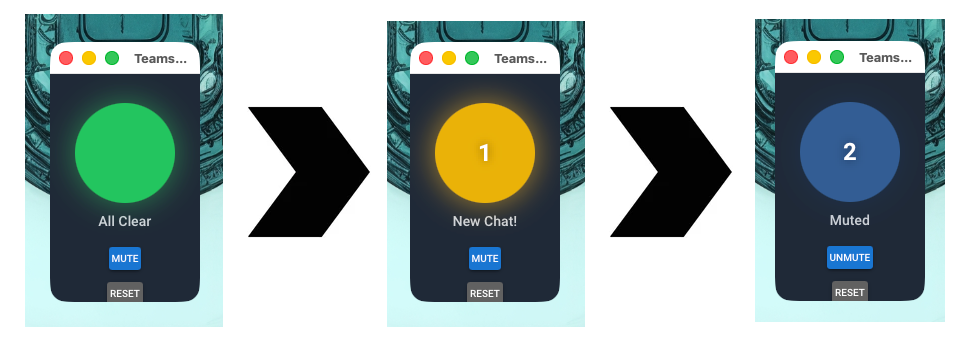
Also, the app shows a small notification window with a traffic light and a counter for received messages including a "reset" button and a "mute/unmute" button for those times you are in a Teams call where a lot of people write in the call's chat. Also, the app plays sound samples (I chose GLaDOS' voice) to announce new messages, urgent messages muting and unmuting the app.
Why Not Just Use the Microsoft Graph API?
Under the hood, a lot of Teams automation and deep integrations are powered by the Microsoft Graph API — Microsoft’s unified REST API for accessing Microsoft 365 services, including Teams activity and chat message notifications. With Graph, you can:
- subscribe to change notifications for chat and channel messages, including filtering on new messages or mentions;
- receive low-latency callbacks when new messages arrive via webhooks;
- build apps that proactively send or react to Teams events. See Microsoft Learn
In theory, this could let you bypass local notification scraping and trigger lights or other hardware directly from Teams message events.
However, in practice this isn’t always feasible for simple client-side notifier solutions like the Luxafor Flag native app or a Zapier automation:
- API Permissions and Security Boundaries – Graph APIs require proper Azure AD app registration and explicit permissions granted by a tenant admin. Not all organizations enable these scopes — especially application permissions that allow reading chats or subscribing to message events — for third-party clients or lightweight automations. Microsoft Learn
- Client vs Service Context – Many Graph notification endpoints (such as change notifications for Teams chats) assume your integration runs as a service with a webhook endpoint and valid token, rather than as a local desktop app. Setting up this service context — handling tokens, exposing a public callback URL, renewing subscriptions — adds significant complexity compared to simply watching native OS notification events. Microsoft Learn
- Third-Party Integration Limitations – Tools like Zapier or the Luxafor native integrations often poll or use available triggers instead of full Graph subscriptions, because tenant administrators frequently restrict broad Graph API access for security reasons. These clients don’t typically have the ability to register themselves as rich Teams apps with the necessary scopes, nor to host a secure webhook endpoint.
For these reasons, the approach taken in this project — detecting notifications locally via the OS notification stream and then triggering a webhook — ends up being both simpler and more reliable in many environments than trying to depend on Graph API access that might not be granted or enabled.
The Solution Architecture
The solution consists of two parts:
- Teams Notifier – A Python-based macOS menu bar application that monitors Teams notifications
- Zapier Webhook – A Zap that receives notification events and controls the Luxafor flag
Here's how it works:
┌─────────────────┐     ┌─────────────────┐     ┌─────────────────┐
│ Microsoft Teams │────▶│ Teams Notifier  │────▶│  Zapier Webhook │
│  (macOS App)    │     │  (Python App)   │     │                 │
└─────────────────┘     └─────────────────┘     └────────┬────────┘
                                                         │
                                                         ▼
                                                ┌─────────────────┐
                                                │  Luxafor Flag   │
                                                │  🟢 🟡 🔴       │
                                                └─────────────────┘
Color Coding
- 🟢 Green – New chat messages have arrived
- 🔴 Red – Urgent notifications (mentions, priority messages)
- ⚫ Off – User pressed the Reset button (alerts acknowledged)
How Teams Notifier Detects Notifications
Microsoft Teams on macOS uses the User Notifications framework to deliver notifications. Instead of relying on deprecated APIs, Teams Notifier taps into the macOS system logs using the log stream command to detect when Teams sends a notification.
The Log Stream Monitor
The core of the application is the LogStreamMonitor class, which spawns a subprocess running:
log stream --predicate 'process == "NotificationCenter" AND \
  (eventMessage CONTAINS "com.microsoft.teams2" OR \
  eventMessage CONTAINS "com.microsoft.teams")'
This captures all notification events from the NotificationCenter process related to Teams. The monitor then parses each log line to detect:
- Notification Sound Events – Teams plays different sounds for different notification types
- Notification Queue Events – When a notification is about to be displayed
Classifying Notification Urgency
Teams uses different sound categories for different notification priorities. By detecting which sound is being played, we can classify notifications:
- Urgent sounds (patterns like
b*_teams_urgent_notification_*) → Red light - Basic sounds (patterns like
a*_teams_basic_notification_*) → Yellow light (treated as chat)
def _classify_by_sound(self, sound_name: str) -> NotificationType:
    sound_lower = sound_name.lower()

    for pattern in config.urgent_sound_patterns:
        if pattern in sound_lower:
            return NotificationType.URGENT

    return NotificationType.CHAT
Building a Native macOS Application with Python
One of the interesting challenges was making this feel like a native macOS application rather than a Python script. Here's the technology stack that makes this possible:
NiceGUI for the Alert Window
NiceGUI is a Python framework that creates web-based UIs with minimal code. What makes it perfect for this project is its ability to run in native mode using pywebview, creating a borderless desktop window rather than opening a browser.
ui.run(
    port=8080,
    title=config.window_title,
    reload=False,
    show=True,
    native=True,
    window_size=(config.window_width, config.window_height),
    frameless=False,
    fullscreen=False,
)
The alert window itself is a simple circular "light" that changes color and animates:
with ui.element("div").classes(
    "relative rounded-full flex items-center justify-center"
).style(
    "width: 100px; height: 100px; background-color: #22c55e; "
    "box-shadow: 0 0 20px rgba(34, 197, 94, 0.5);"
) as light:
    self._light_element = light
The UI includes:
- A circular light indicator with glow effects
- Pulsing animation for chat notifications (slow)
- Flashing animation for urgent notifications (fast)
- A notification counter
- A Reset button to acknowledge alerts
pywebview for Native Window Behavior
pywebview is the secret sauce that allows the NiceGUI web interface to run as a native window. Key features used:
- Always-on-top – The alert window stays visible above other windows
- Compact size – A 150×200 pixel window that doesn't get in the way
- No dock icon – Runs as a background/menu bar application
async def set_always_on_top():
    await asyncio.sleep(1.5)  # Wait for window to be ready
    if app.native.main_window:
        app.native.main_window.on_top = True
rumps for Menu Bar Integration
rumps (Ridiculously Uncomplicated macOS Python Statusbar apps) provides native macOS menu bar integration. Though currently not used in the main UI flow (due to threading conflicts with NiceGUI native mode), it's included for potential future enhancements:
class TeamsMenuBar(rumps.App):
    ICON_IDLE = "🟢"
    ICON_CHAT = "🟡"
    ICON_URGENT = "🔴"

    def __init__(self, port: int = 8080):
        super().__init__(name="Teams Alert", title=self.ICON_IDLE)
        self.menu = [
            rumps.MenuItem("Show Window", callback=self._show_window),
            rumps.MenuItem("Reset Alerts", callback=self._reset_alerts),
            # ...
        ]
PyObjC for macOS Framework Access
PyObjC bridges Python and Objective-C, providing access to native macOS frameworks. We use:
- pyobjc-framework-Cocoa – For macOS Cocoa APIs
- pyobjc-framework-UserNotifications – For notification framework integration
Webhook Integration with Luxafor and Zapier
The final piece is connecting the application to the physical world via webhooks.
The Webhook Sender
When a notification is detected (or the Reset button is pressed), the app sends a POST request to a configured webhook URL:
payload = {
    "type": notification_type,  # "message", "urgent", or "clear"
    "timestamp": datetime.now(timezone.utc).isoformat(),
    "source": "teams-notifier"
}
The webhook sender handles both async and sync contexts gracefully, important since notifications come from a background thread monitoring the log stream:
def send_notification_sync(self, notification_type: str) -> None:
    if threading.current_thread() is threading.main_thread():
        # Schedule async task in main event loop
        asyncio.create_task(self.send_notification(notification_type))
    else:
        # Use synchronous requests in background thread
        thread = threading.Thread(target=self._send_sync_request, ...)
        thread.start()
Integrating with the Luxafor Flag
The Luxafor flag USB notification device supports web hooks which can be configured via https://www.luxafor.app.
First, the physically connected Luxafor device needs to be connected to the web app. This requires the Edge or Chrome browser.
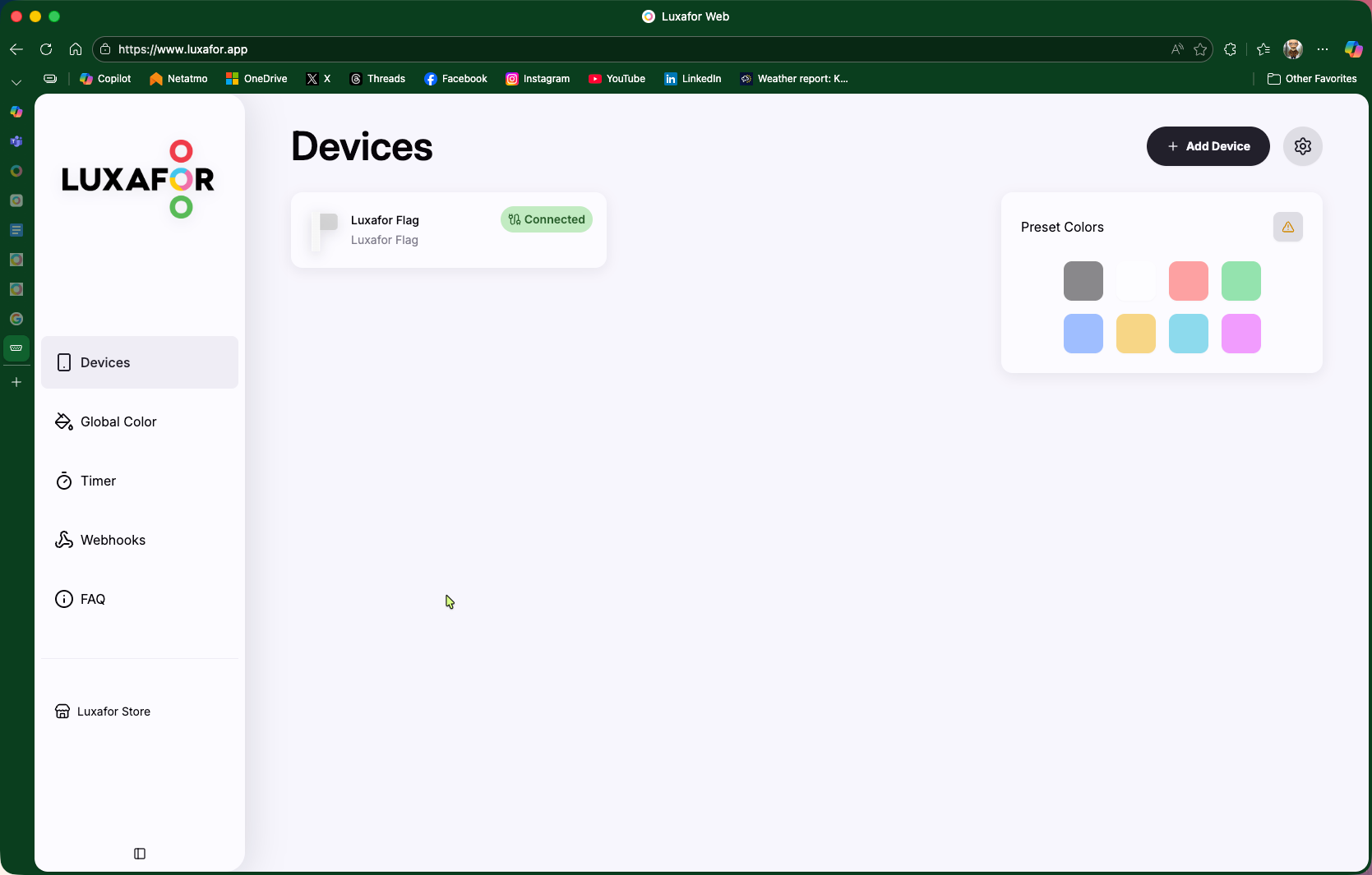
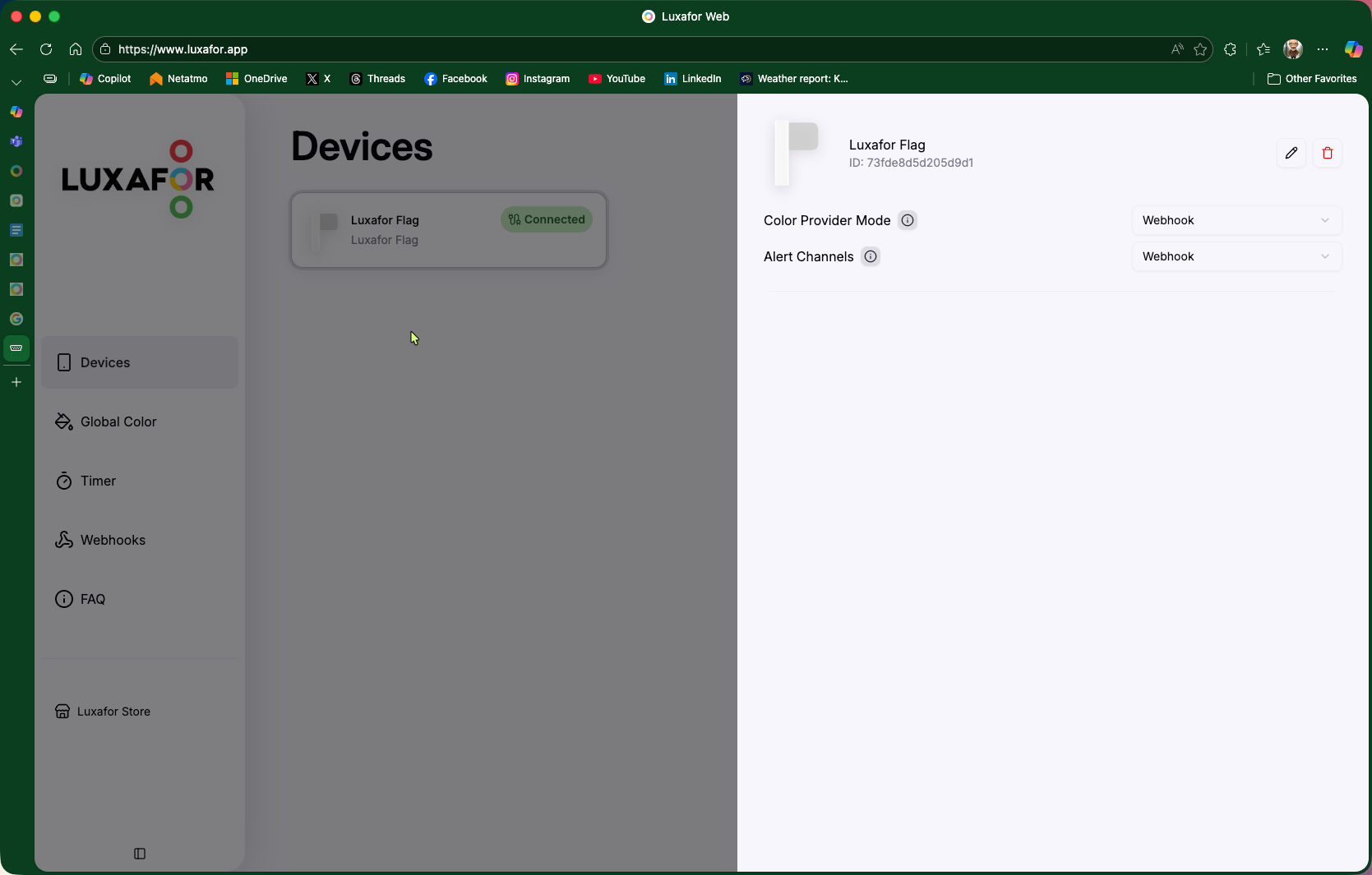
Next, the device needs to be configured to work with web hooks.
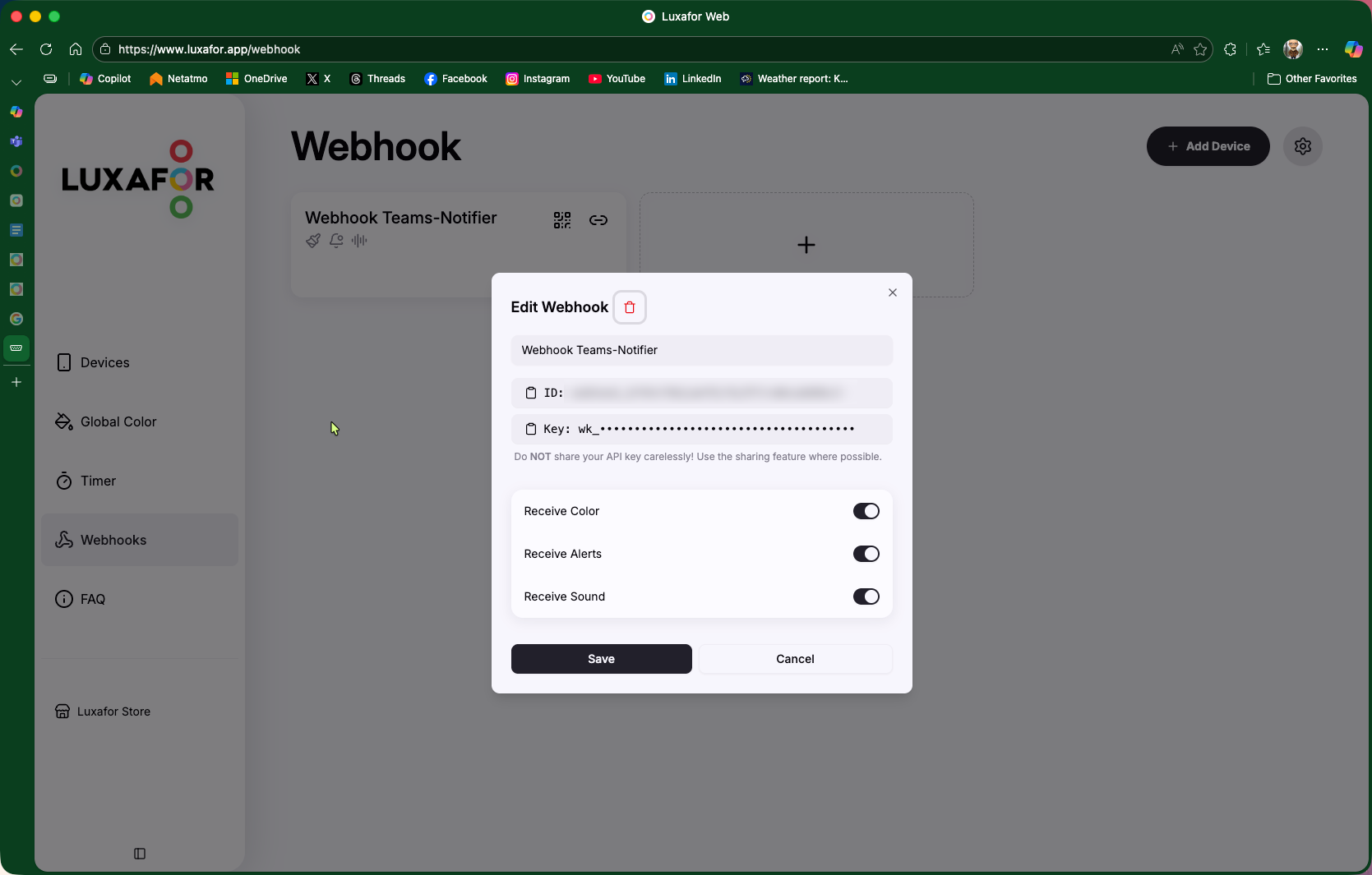
Now, a web hook for the device can be added which results in a token being generated.
Configuring the Client to work with Luxafor Web hooks
Luxafor expects specific messages to be sent to the web hook in the format of:
curl -X POST "https://services.luxafor.io/webhook/api/v1/commands/send" \
  -H "Content-Type: application/json" \
  -H "Authorization: Bearer your_api_key_here" \
  -d '{"command":"color.set","payload":{"r":255,"g":0,"b":0}}'
To facilitate this, the app allows for custom web hook payloads to be configured in the env file:
# Webhook URL for notifications (optional)
# Receives POST requests when notifications occur
# Set to empty or remove to disable webhooks
WEBHOOK_URL=https://services.luxafor.io/webhook/api/v1/commands/send

# Webhook Bearer Token (optional)
# If set, adds "Authorization: Bearer <token>" header to webhook requests
WEBHOOK_BEARER=wk_xxxxx

# Webhook Payloads (optional)
# Custom JSON payloads to send for each notification type.
# If not set, a default payload with type/timestamp/source is sent.
# Each payload must be a valid JSON object on a single line.
#
# Payload for regular message notifications:
WEBHOOK_PAYLOAD_MESSAGE={"command": "color.set", "payload": {"r": 0, "g": 255, "b": 0}}
#
# Payload for urgent/priority notifications:
WEBHOOK_PAYLOAD_URGENT={"command": "color.set", "payload": {"r": 255, "g": 0, "b": 0}}
#
# Payload for clear/reset notifications (when user clicks the window):
WEBHOOK_PAYLOAD_CLEAR={"command": "color.set", "payload": {"r": 0, "g": 0, "b": 0}}
The Zapier Zap
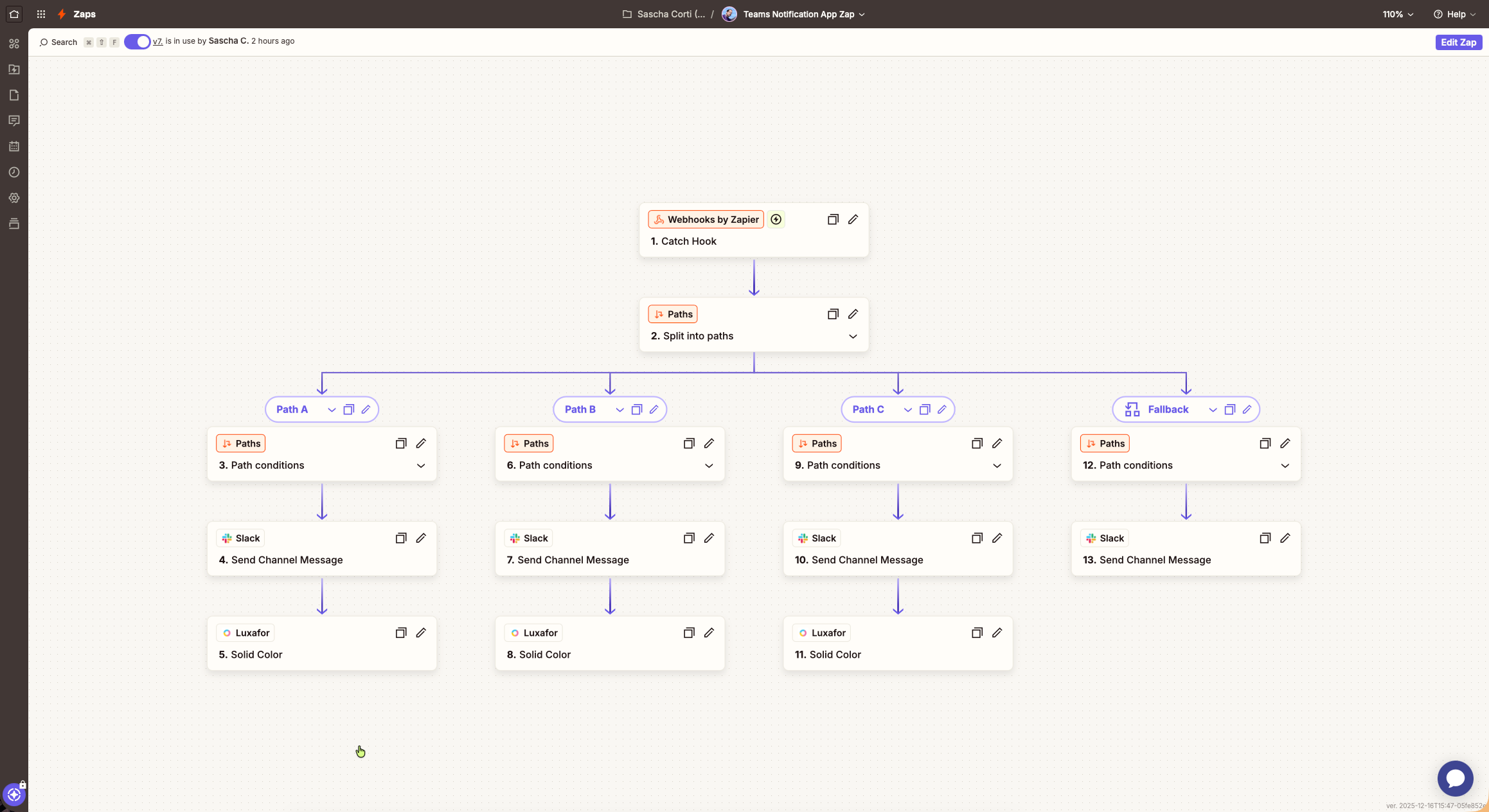
The Zapier workflow is straightforward:
- Trigger: Webhooks by Zapier → "Catch Hook"
- Action: Luxafor integration → Set color based on payload type:
type: "message"→ Green lighttype: "urgent"→ Red lighttype: "clear"→ Turn off
This creates a physical, ambient notification system that works even when you're not looking at your screen.
Building the macOS .app Bundle
To distribute the application, I use PyInstaller to create a proper macOS .app bundle:
# TeamsNotifier.spec
app = BUNDLE(
    coll,
    name='Teams Notifier.app',
    icon='resources/icon.icns',
    bundle_identifier='com.sascha.teams-notifier',
    info_plist={
        'CFBundleName': 'Teams Notifier',
        'LSMinimumSystemVersion': '11.0',
        'NSHighResolutionCapable': True,
    },
)
The spec file includes all necessary hidden imports for NiceGUI (which uses FastAPI/Uvicorn internally) and PyObjC frameworks.
Key Dependencies
| Package | Purpose |
|---|---|
nicegui>=1.4.0 | Web-based UI framework with native mode support |
pywebview>=5.0 | Native window rendering for the alert UI |
rumps>=0.4.0 | macOS menu bar integration |
pyobjc-framework-Cocoa>=10.0 | macOS Cocoa framework bindings |
pyobjc-framework-UserNotifications>=10.0 | User notifications framework |
python-dotenv>=1.0.0 | Configuration via .env files |
aiohttp>=3.9.0 | Async HTTP client for webhooks |
requests>=2.31.0 | Sync HTTP client (fallback for background threads) |
Configuration
The application is highly configurable through environment variables. Just copy the `.env.example file to .env and set the required parameters:
# Teams Notifier Environment Variables
# Copy this file to .env and fill in your values

# Webhook URL for notifications (optional)
# Receives POST requests when notifications occur
# Set to empty or remove to disable webhooks
WEBHOOK_URL=https://hooks.zapier.com/hooks/catch/xxxxx/xxxxx/

# Teams Notification Sound Patterns (optional)
# Comma-separated substrings to match in Teams sound names
# Use these to customize which sounds trigger urgent vs chat notifications
#
# To find your Teams sound names, run this in Terminal while receiving notifications:
#   log stream --predicate 'process == "NotificationCenter"' | grep -i "Playing notification sound"
#
# Default urgent patterns (mentions, priority messages):
URGENT_SOUND_PATTERNS=urgent,prioritize,escalate,alarm
#
# Default chat patterns (regular messages) - currently not used for classification,
# but can be used for future enhancements:
CHAT_SOUND_PATTERNS=basic,ping,notify
Visual settings can be customized in src/config.py:
# Colors (CSS format)
color_idle: str = "#22c55e"    # Green
color_chat: str = "#eab308"    # Yellow
color_urgent: str = "#ef4444"  # Red

# Animation speeds
pulse_speed: float = 1.0   # Yellow pulsing (seconds)
flash_speed: float = 0.3   # Red flashing (seconds)
Running the Application
Development Mode
# Using uv (recommended)
uv run python -m src.main

# Demo mode (simulates notifications)
uv run python -m src.main --demo
Production
# Build the .app bundle
./build.sh

# Install to Applications
cp -r "dist/Teams Notifier.app" /Applications/

# Copy the .env file to ~/.config/teams-notifier/
mkdir ~/.config/teams-notifier
cp .env ~/.config/teams-notifier
Conclusion
This project demonstrates how to:
- Monitor macOS system logs to detect application events (Teams notifications)
- Build native-feeling macOS apps with Python using NiceGUI and pywebview
- Integrate with physical devices via webhooks and automation platforms like Zapier
The combination of software notification monitoring and physical visual feedback creates an ambient awareness system that helps you stay on top of important messages without constantly checking your screen.
The full source code is available on GitHub, and the application is designed to be easily extensible—you could swap Luxafor for smart lights, push notifications to your phone, or integrate with any other webhook-compatible service.
Have questions or improvements? Feel free to open an issue or pull request on the GitHub repository!