
Cleaning Up the Adobe Mess: Orphaned Office Add-ins After Uninstalling Acrobat Reader on macOS


Adobe and I have history. A while back, I wanted to cancel my Photoshop suite subscription and got hit with a penalty fee for "canceling outside of the cancellation window" — a fee for the privilege of no longer being a customer.
Lesson learned, I thought.
Apparently not. Recently I made the mistake of installing Adobe Acrobat Reader on my Mac. When I uninstalled it, Adobe left me a parting gift: a set of add-ins buried in my Microsoft Office applications that the uninstaller never bothered to remove. Every time I opened a new, blank PowerPoint presentation, I was greeted with this:
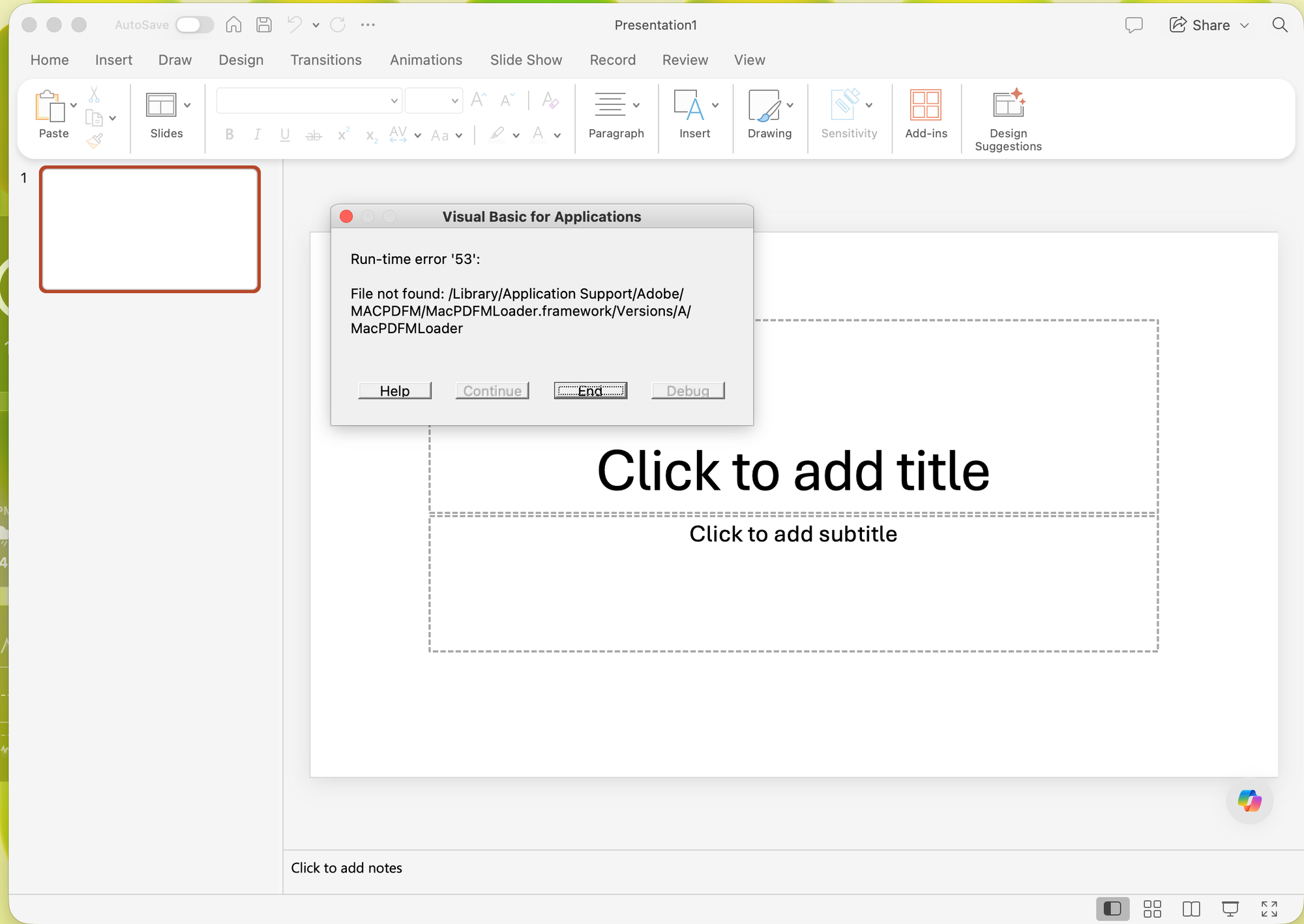
Visual Basic for Applications
Run-time error '53':
File not found:
/Library/Application Support/Adobe/MACPDFM/MacPDFMLoader.framework/Versions/A/MacPDFMLoader
This post walks through what causes the error, why the "obvious" fix didn't work on my machine, and ends with a script you can run on any Mac to clean up the mess properly.
What's actually happening
When you install Acrobat (or in some configurations, Acrobat Reader), Adobe drops its PDFMaker add-ins into the Microsoft Office startup folders. These are standard Office add-in files — .ppam for PowerPoint, .xlam for Excel, .dotmfor Word — and Office auto-loads anything it finds in its startup locations at launch.
The add-ins themselves are thin VBA wrappers. At load time, they try to pull in a native framework that ships with Acrobat:
/Library/Application Support/Adobe/MACPDFM/MacPDFMLoader.framework
Adobe's uninstaller removes the framework but leaves the Office add-ins in place. The result: Office launches, auto-loads the orphaned add-in, the add-in's VBA fails to resolve the framework path, and you get run-time error '53' — on every single launch, in every Office app that has one of these leftovers.
The fix that didn't work
The standard advice is to delete the add-ins from the per-user Office startup folder:
~/Library/Group Containers/UBF8T346G9.Office/User Content.localized/Startup.localized/PowerPoint/SaveAsAdobePDF.ppam
I wrote a script to check the well-known paths — per-user and machine-wide — and delete whatever it found. Its output on my machine:
No Adobe PDFMaker add-in files found. Nothing to do.
Great. The error persisted, and the files were nowhere the documentation said they'd be.
Finding the actual files
Instead of guessing paths, I asked the filesystem:
mdfind -name SaveAsAdobePDF
Result:
/Library/Application Support/Microsoft/Office365/User Content.localized/Startup/Powerpoint/SaveAsAdobePDF.ppam
Compare that to the documented path and you'll spot two differences that break any exact-path check:
- The folder is
Startup, notStartup.localized. - The app folder is
Powerpoint— lowercase "p" — notPowerPoint.
And it gets better. Listing the sibling folders revealed a third surprise:
Startup/Excel/AcrobatExcelAddin.xlam
Startup/Word/linkCreation.dotm
The Excel add-in isn't called SaveAsAdobePDF.xlam anymore — newer Acrobat releases renamed it to AcrobatExcelAddin.xlam. So across one machine we have inconsistent folder naming, inconsistent capitalization, and inconsistent file naming between Office apps. Any cleanup based on a hardcoded path list is going to miss something.
The script: search, don't guess
The robust approach is to stop enumerating exact paths and instead search the Office content containers with case-insensitive patterns. The script below:
- Searches both the per-user container (
~/Library/Group Containers/UBF8T346G9.Office) and the machine-wide one (/Library/Application Support/Microsoft/Office365) - Matches any file inside a
Startupfolder (any casing, with or without.localized) - Restricts matches to Office add-in extensions (
.ppam,.xlam,.dotm) so it can't touch anything else - Matches the known Adobe add-in names, old and new:
SaveAsAdobePDF.*,Acrobat*Addin*,linkCreation.dotm - Deletes user-writable files directly and escalates with
sudoonly for root-owned machine-wide files - Warns if Word, Excel, or PowerPoint are still running
- Supports
--dry-runso you can see what it would delete before it deletes anything - Exits non-zero on failed deletions, so it behaves well in loops over SSH or in an MDM deployment
#!/bin/bash
#
# remove_adobe_pdfmaker_addins.sh
#
# Finds and removes orphaned Adobe Acrobat PDFMaker add-ins from the
# Microsoft Office startup folders on macOS. These leftovers cause VBA
# run-time error '53' ("File not found: .../MacPDFMLoader") in Word,
# Excel, and PowerPoint after Acrobat has been uninstalled.
#
# Usage:
#   ./remove_adobe_pdfmaker_addins.sh            # delete found files
#   ./remove_adobe_pdfmaker_addins.sh --dry-run  # report only, delete nothing

set -u

DRY_RUN=0
[[ "${1:-}" == "--dry-run" ]] && DRY_RUN=1

# --- Search roots -----------------------------------------------------------
# Per-user and machine-wide Office content containers.

SEARCH_ROOTS=(
  "$HOME/Library/Group Containers/UBF8T346G9.Office"
  "/Library/Application Support/Microsoft/Office365"
)

# --- Match criteria ---------------------------------------------------------
# Only files inside a Startup folder (any casing / .localized variant),
# with an Office add-in extension, matching known Adobe add-in names.

find_addins() {
  local root="$1"
  [[ -d "$root" ]] || return 0
  find "$root" \
    -type f \
    -ipath "*startup*" \
    \( -iname "*.ppam" -o -iname "*.xlam" -o -iname "*.dotm" \) \
    \( -iname "SaveAsAdobePDF.*" \
       -o -iname "Acrobat*Addin*" \
       -o -iname "linkCreation.dotm" \) \
    2>/dev/null
}

# --- Safety check: warn if Office apps are running --------------------------

for app in "Microsoft PowerPoint" "Microsoft Word" "Microsoft Excel"; do
  if pgrep -xq "$app"; then
    echo "WARNING: $app is running. Quit it before removing add-ins." >&2
  fi
done

# --- Discovery ---------------------------------------------------------------

FOUND_FILES=()
for root in "${SEARCH_ROOTS[@]}"; do
  while IFS= read -r f; do
    [[ -n "$f" ]] && FOUND_FILES+=("$f")
  done < <(find_addins "$root")
done

if [[ ${#FOUND_FILES[@]} -eq 0 ]]; then
  echo "No Adobe PDFMaker add-in files found. Nothing to do."
  exit 0
fi

echo "Found ${#FOUND_FILES[@]} Adobe add-in file(s):"
printf '  %s\n' "${FOUND_FILES[@]}"
echo

# --- Removal -----------------------------------------------------------------

removed=0
failed=0

for f in "${FOUND_FILES[@]}"; do
  if [[ $DRY_RUN -eq 1 ]]; then
    echo "[dry-run] Would delete: $f"
    continue
  fi
  if [[ -w "$(dirname "$f")" ]]; then
    if rm -f "$f"; then
      echo "Deleted: $f"
      removed=$((removed + 1))
    else
      echo "FAILED:  $f" >&2
      failed=$((failed + 1))
    fi
  else
    # Machine-wide location (or otherwise not writable) -> needs sudo
    if sudo rm -f "$f"; then
      echo "Deleted (sudo): $f"
      removed=$((removed + 1))
    else
      echo "FAILED (sudo): $f" >&2
      failed=$((failed + 1))
    fi
  fi
done

# --- Summary -----------------------------------------------------------------

echo
if [[ $DRY_RUN -eq 1 ]]; then
  echo "Dry run complete: ${#FOUND_FILES[@]} file(s) would be deleted."
else
  echo "Done: $removed of ${#FOUND_FILES[@]} file(s) deleted."
  if [[ $failed -gt 0 ]]; then
    echo "$failed deletion(s) failed — check permissions (MDM-managed paths may be protected)." >&2
    exit 1
  fi
fi

exit 0
Usage
Preview first:
./remove_adobe_pdfmaker_addins.sh --dry-run
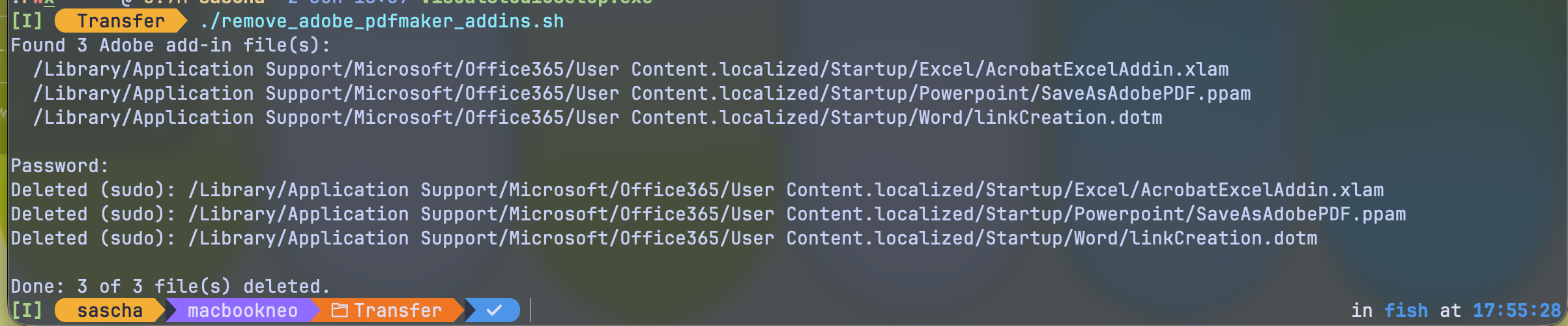
On my machine, the discovery step found:
Found 3 Adobe add-in file(s):
  /Library/Application Support/Microsoft/Office365/User Content.localized/Startup/Powerpoint/SaveAsAdobePDF.ppam
  /Library/Application Support/Microsoft/Office365/User Content.localized/Startup/Excel/AcrobatExcelAddin.xlam
  /Library/Application Support/Microsoft/Office365/User Content.localized/Startup/Word/linkCreation.dotm
Then run it for real:
./remove_adobe_pdfmaker_addins.sh
The machine-wide files are owned by root, so you'll get a sudo prompt. Quit and relaunch PowerPoint (and Word, and Excel) afterwards — error 53 is gone.
Two caveats:
- On MDM-managed Macs, a machine-wide path could be protected by policy. If
sudo rmfails there, the script tells you and exits non-zero. A plain Adobe leftover under/Library/Application Support/Microsoftis normally deletable by any admin account, though. - If the error persists after cleanup, check Tools → PowerPoint Add-ins… inside PowerPoint. A dangling add-in registration (pointing at a file that no longer exists) can produce the same error class; remove the entry with the –button.
Takeaway
An uninstaller that removes the framework but leaves the add-ins that depend on it is half an uninstaller. If a vendor's cleanup can't be trusted, find with case-insensitive patterns beats any hardcoded path list — the folder naming (Startup vs Startup.localized), capitalization (Powerpoint vs PowerPoint), and even the add-in file names themselves vary between machines and Acrobat versions.
And as with the subscription cancellation fee: with Adobe, leaving is apparently always more work than arriving.