
Reaching Your Home Lab from Anywhere with Self-Hosted NetBird, and the Four Problems You'll Actually Hit

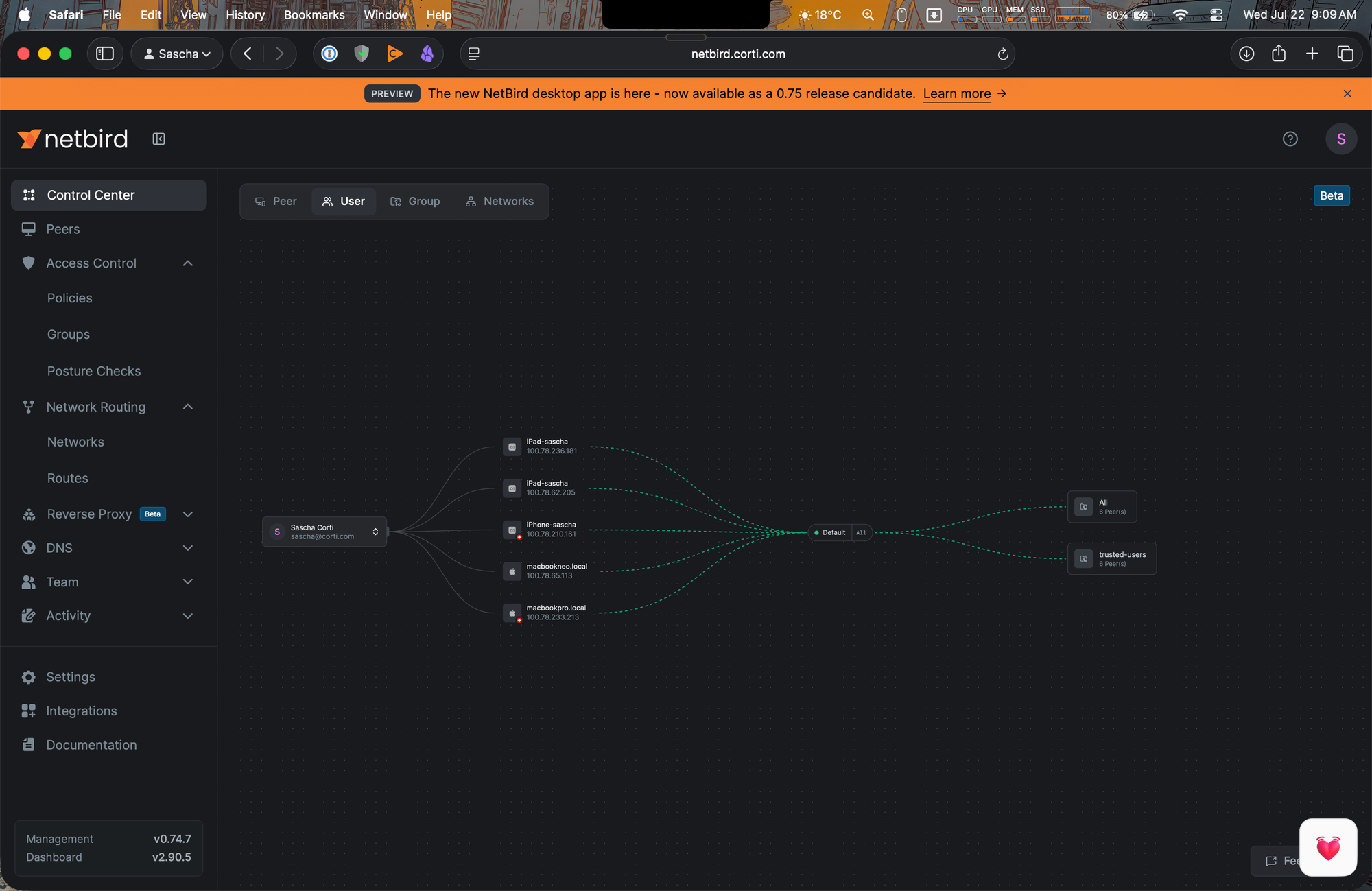
Self-hosting a mesh VPN sounds like a weekend project, and the happy path mostly is. What the quickstart guides don't tell you is what breaks after the dashboard comes up. I recently deployed NetBird on my own infrastructure to reach my home lab from anywhere, and hit four distinct, real-world problems on the way — none of them NetBird bugs, all of them worth knowing in advance. This post covers the setup and, more importantly, the debugging.
The goal: from a laptop on any network — office, hotel, guest Wi-Fi — reach internal services on my home LAN by friendly DNS names like nas.home.internal, without exposing those services to the internet and without installing an agent on every LAN device.
Architecture
- NetBird control plane (management, signal, relay, dashboard) self-hosted in Docker on a Linux server, published through the bundled Traefik
- A routing peer: one Linux machine on the home LAN running the NetBird agent, forwarding traffic between the WireGuard overlay and the LAN
- Clients: macOS, iOS — anything with the NetBird app
- DNS: NetBird Custom DNS Zones (v0.63+) serving internal A records directly to peers — no Pi-hole or separate DNS server required
Installation
NetBird ships a quickstart script as a release asset, which configures NetBird as a series of Docker containers managed by Docker Compose:
export NETBIRD_DOMAIN=netbird.example.com
curl -fsSLO https://github.com/netbirdio/netbird/releases/latest/download/getting-started.sh
less getting-started.sh   # always inspect before you execute
bash getting-started.sh
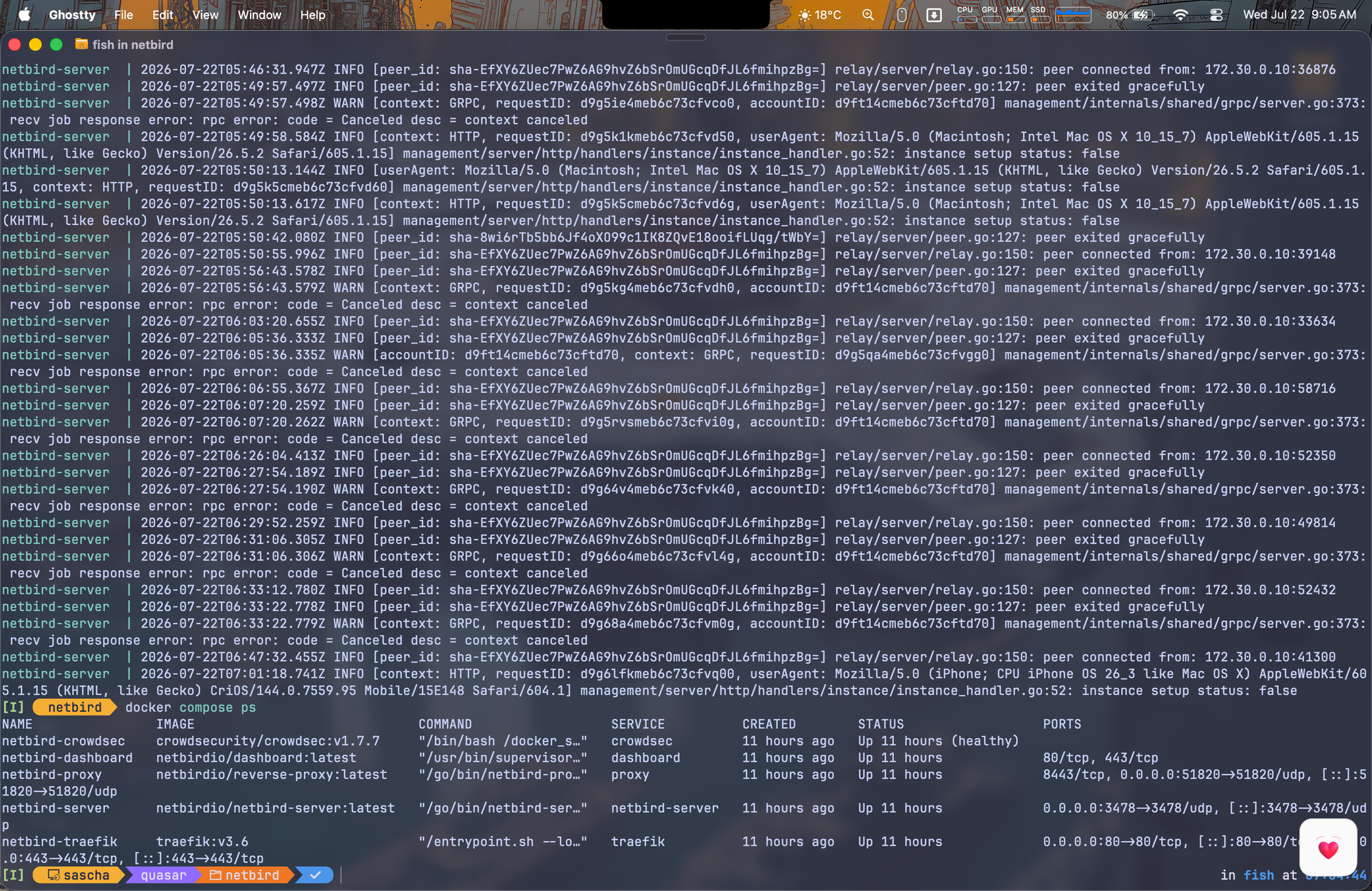
At the reverse-proxy prompt I took the default [0] built-in Traefik. I run Caddy elsewhere and initially planned to put NetBird behind it (the script supports this — option [4] generates a ready-made Caddyfile snippet), but the default Traefik path is what NetBird tests against, it survives upstream compose changes without manual rework, and the optional NetBird Proxy feature depends on Traefik TLS passthrough. On a dedicated VM, take the default.
DNS and firewall prerequisites
NETBIRD_DOMAIN must be a public FQDN resolving to the IP from which traffic reaches your server. Behind NAT that means:
- An A record (
netbird.example.com) pointing at your firewall's WAN IP - Optionally a wildcard (
*.netbird.example.com) if you plan to use the NetBird Proxy feature later - Port forwards to the NetBird host: TCP 80, TCP 443, UDP 3478 — that's the complete list on the current consolidated port architecture (v0.29+); the old zoo of extra ports is gone
Watch out for hairpin NAT: LAN clients also connect to the public FQDN. If your firewall doesn't do NAT reflection, add a split-horizon override on your internal resolver.
Peer-to-Peer Networking meets VPN
NetBird is designed as a peer-to-peer mesh VPN. So the natural choice would be to install the NetBird client on every resource that needs to be reached from outside. This is a pain to manage though and some devices don't support it.
So the way to go is to install the NetBird agent on a single machine on the LAN and use it to forward traffic to the rest of the home network.
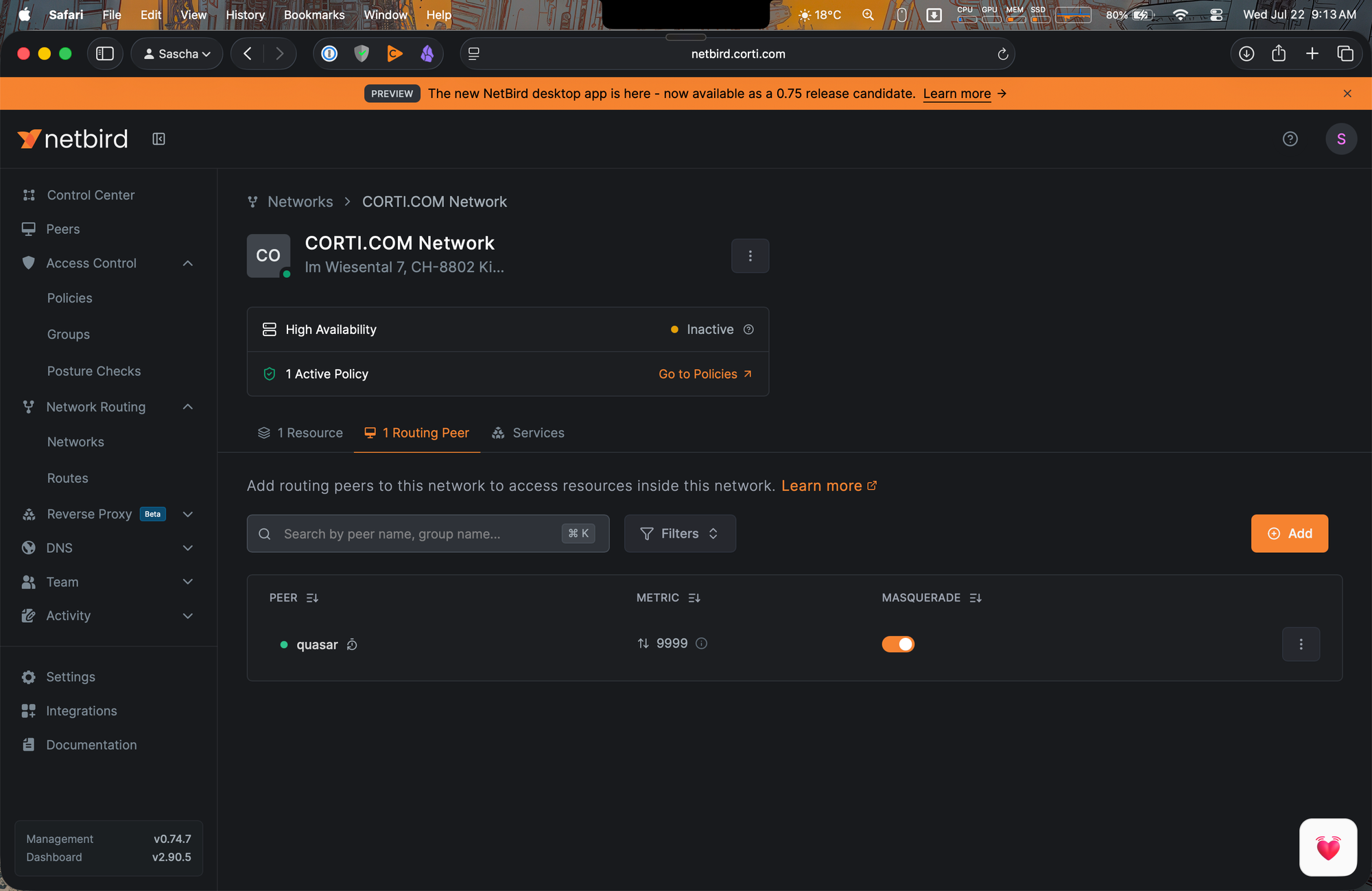
I run the NetBird agent on the same box as the NetBird control plane, running in Docker.
When installing the NetBird client on any device, you now only need to set the management server to "self hosted" and enter your NETBIRD_DOMAIN as the management server address.
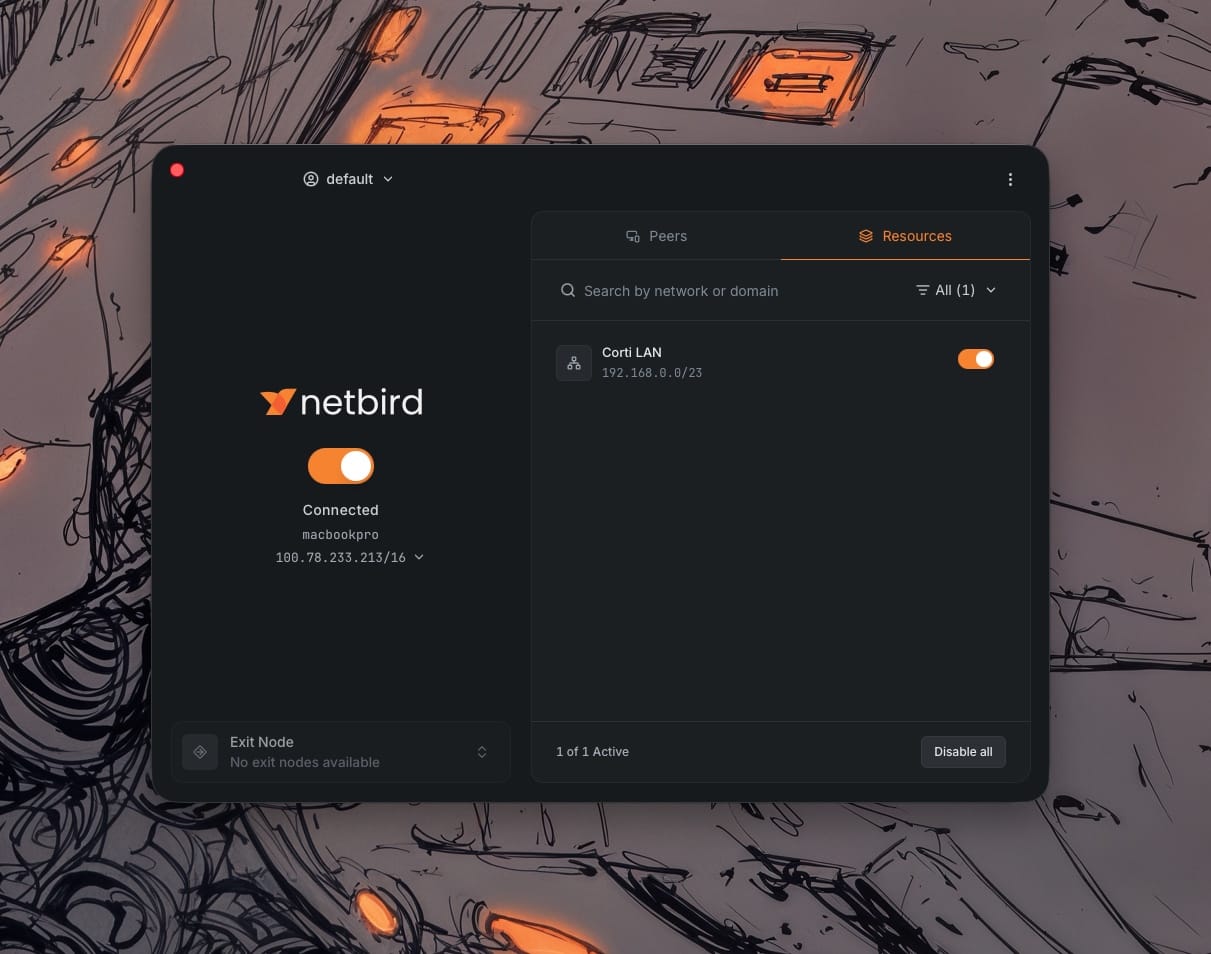
Making a network visible to clients
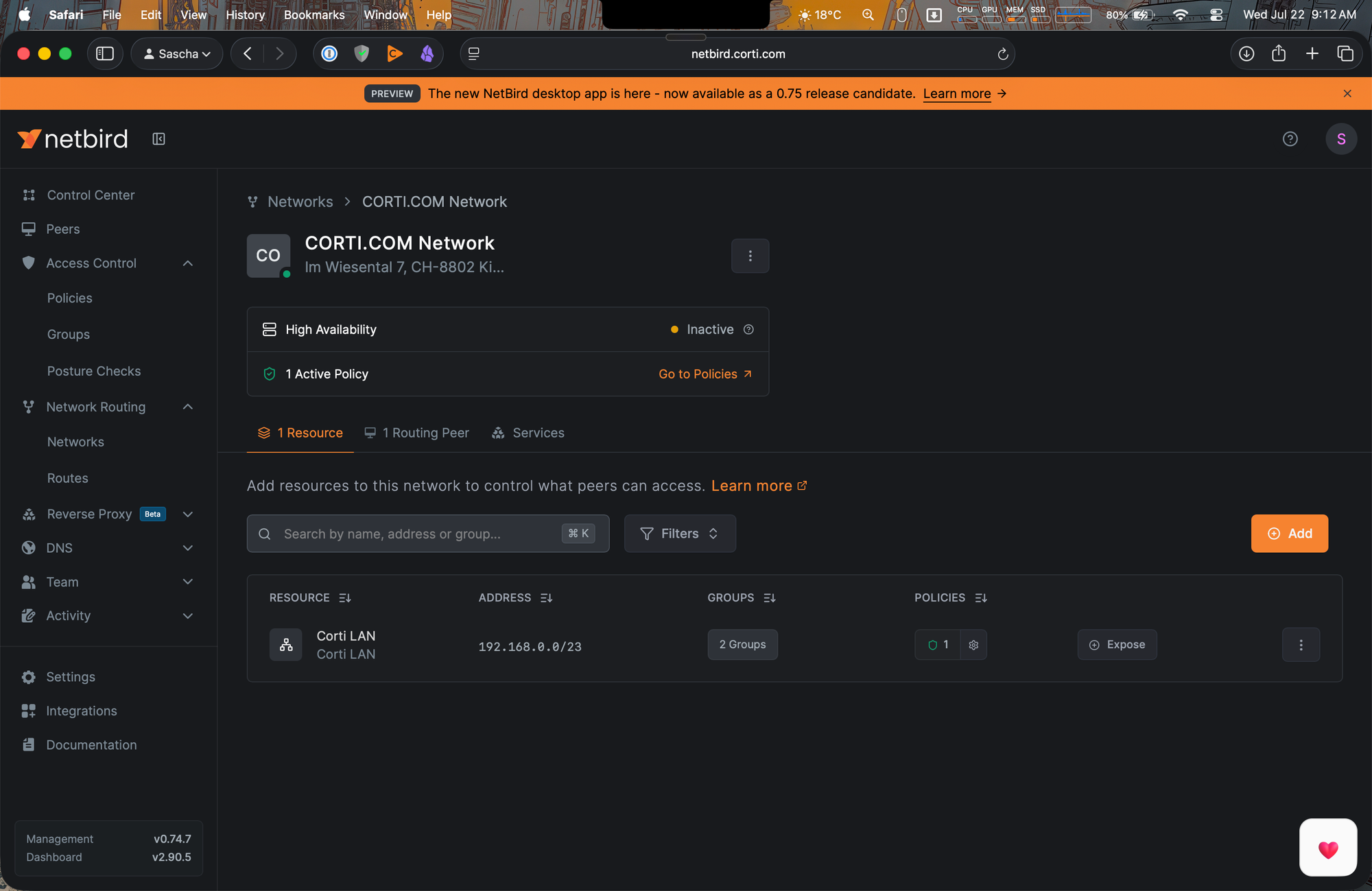
A fresh NetBird install shows every client "No resources available" — because everything is deny-by-default. Four pieces must exist and reference each other:
- Network (Networks > Add Network), e.g. "Home LAN"
- Resource: the subnet, e.g.
192.168.0.0/23— and the CIDR you choose matters enormously, see Problem 3 - Routing peer: the LAN-connected machine running the agent. Register headless servers with a setup key, not interactive login.
- Access policy: source group = your clients, destination group = the resource, plus allowed protocols/ports
Problem 1: the invisible All group
My peers showed no group membership in the dashboard, and the All group didn't even appear in the "Add Groups" picker. That's by design: All is system-maintained and implicit — every peer is always in it, so it can't be manually assigned. It is selectable as a policy source and as a distribution group, though.
The actual bug in my setup: my policy and DNS zone were distributed to groups no peer was a member of. The symptom on the client is unambiguous:
$ netbird status -d
...
Networks: -
Nameservers:
Empty network map → group/distribution mismatch, every time. Quick fix: use All everywhere (fine for a homelab where every peer is yours). Cleaner fix: create a named group inline in the peer's group selector, assign your clients to it, and reference that group in the policy and zone. Put the routing peer in its own group — you'll want that separation later (see the input-chain note below).
Internal DNS with Custom Zones
Since v0.63, NetBird hosts DNS records itself: DNS > Zones > Add Zone (home.internal), then add A records like nas.home.internal → 192.168.0.3. Records are pushed to each peer's embedded resolver — resolution happens locally on the client, and traffic to the returned IP rides the routed network automatically.
Problem 2: don't point a match domain at a public resolver
My first attempt configured Google DNS (8.8.8.8) as a nameserver with home.internal as a match domain. That's backwards: Google knows nothing about your internal zone and answers NXDOMAIN. Custom Zones take precedence over nameservers for the same domain, so once the zone was distributed correctly this misconfiguration was masked — but any client that doesn't receive the zone falls through to a resolver that can't answer. Delete the match domain. Better yet, skip configuring a primary nameserver in NetBird entirely: let clients use whatever DNS their current network provides, with NetBird's resolver handling only your internal zone as a supplemental resolver. Roaming clients will thank you — captive portals and guest networks that block outbound port 53 to arbitrary resolvers are common.
A macOS-specific trap while testing: dig lies to you. It queries the default resolver directly and ignores macOS's scoped/supplementary resolvers — exactly the mechanism NetBird uses. dig nas.home.internal can show NXDOMAIN while every app resolves fine. Test the real path instead:
scutil --dns                                    # inspect scoped resolvers
dscacheutil -q host -a name nas.home.internal   # the path apps actually use
Problem 3: the /16 that killed the internet
I originally shared my LAN as 192.168.0.0/16. It worked at home. Then I connected from another site — and lost internet access entirely, while pings to my home server still worked.
The site's Wi-Fi was 192.168.12.0/22. Its gateway and DNS server lived inside the /16 I was routing through NetBird, so the tunnel captured my local gateway traffic, hauled it to my home LAN, and dropped it on the floor. Ping to home worked because that traffic was supposed to go through the tunnel; everything else died with it.
Route the narrowest CIDR that covers your actual LAN. Mine spans 192.168.0.x and 192.168.1.x, so 192.168.0.0/23 (mask 255.255.254.0 — release one bit from the /24) covers exactly that and nothing else. Claiming all of 192.168/16 guarantees collisions with the most common private range on earth. Verify the client actually received the narrowed route after the change:
netstat -rn -f inet | grep utun # should show the /23, not a stale /16
You can still collide with a foreign network using your exact /23; the robust long-term answer is renumbering the home LAN to an uncommon range. But narrowing the CIDR eliminated the everyday case for me.
Problem 4: two ZTNA clients, one DNS path
With routing and DNS config fixed, resolution still hung — curl and ping google.com sat silent for 30+ seconds. The diagnostic that cracked it was querying every resolver directly, then the system path:
dig google.com @<netbird-resolver> +time=2   # 10 ms ✓
dig google.com @<local-network-dns> +time=2  # 63 ms ✓
dig google.com @8.8.8.8 +time=2              # 7 ms ✓
time dscacheutil -q host -a name google.com  # 36 seconds ✗
Every DNS server healthy; the system resolution path broken. ifconfig and systemextensionsctl list named the culprit: a second tunnel interface belonging to Microsoft Entra Global Secure Access on my managed work Mac. GSA acquires traffic by FQDN, which requires it to intercept the device's DNS requests — the same layer NetBird's resolver plugs into. Each client worked flawlessly alone (verified by A/B: pause one, resolution drops to 45 ms); together they deadlocked the path with timeouts.
The proper fix is coexistence configuration, the same pattern Microsoft documents for third-party VPNs: on the GSA side, add Custom Bypass rules (Entra admin center > Global Secure Access > Traffic forwarding > Internet Access policies > Custom Bypass) for the NetBird overlay subnet (100.x CGNAT space — note this is not covered by GSA's built-in private-range bypass, which only knows RFC 1918), the control-plane FQDN, and your internal zone. On a corporate-managed device, get that exclusion approved as explicit policy — two tunnels silently fighting is a debugging nightmare; two tunnels with documented scope is an architecture.
If you run any second VPN/SSE/filtering client — corporate or otherwise — assume DNS-path contention until proven innocent.
The debugging method that worked
Every problem above fell to the same discipline: isolate the layer before touching config.
- Overlay up? →
netbird status -d(network map, DNS section, peer states) - Route installed? →
netstat -rn/ check which interface owns the destination - Name resolves? → per-resolver
dig, thendscacheutilfor the system path - Port reachable? →
nc -vz <ip> <port>(bypasses DNS and browsers entirely) - Only then the application layer (TLS certs, HTTP vs HTTPS, service bindings)
Ping succeeding while a TCP port fails means policy, binding, or host firewall — not routing. And remember the forward-vs-input-chain rule: a network resource policy grants access to the LAN behind the routing peer; services running on the routing peer itself need a separate peer-to-peer policy.
Closing
The end state is exactly what I wanted: open a laptop anywhere, toggle NetBird, and nas.home.internal resolves and loads as if I were on the couch — with nothing exposed publicly except three forwarded ports on hardened, single-purpose services. None of the four problems were NetBird's fault; all four are inherent to the domain — group-scoped zero trust, DNS layering, RFC 1918 collisions, and the increasingly crowded system DNS path on managed endpoints. Knowing them in advance turns a weekend of debugging into an afternoon of setup.